Case Dashboard
The Case Dashboard is the main interface for finding and interacting with cases. It’s also the home screen when you launch nQuest.
The Case Dashboard contains a list of cases, and a set of tools for interacting with cases.
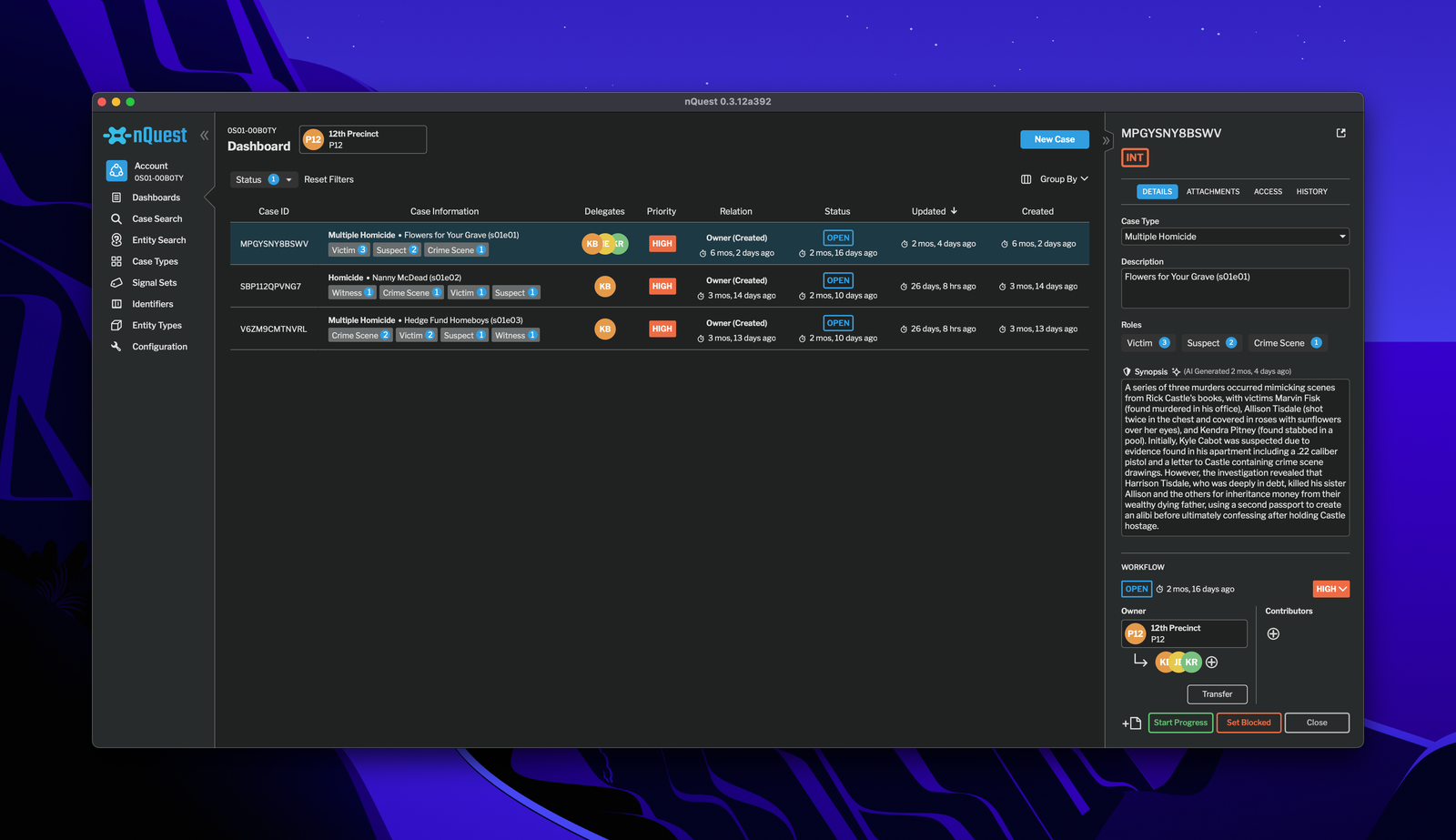
A case dashboard view
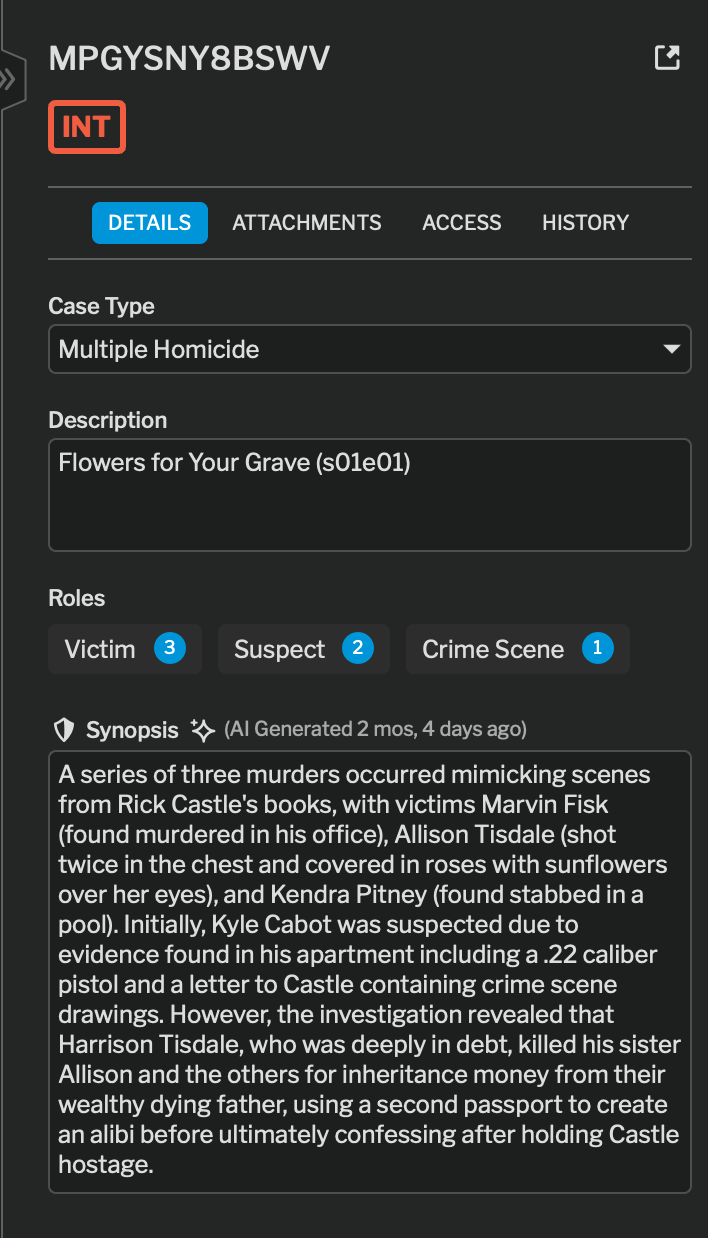
A case details view
The core object within nQuest is the case. This represents a single, discrete investigation.
At the library level, cases have case details. These describe the who, what, and why of the case.
Case details are more broadly visible than the contents of a case file.
Case Details will be discussed in more detail later.
Dashboard Tools
Section titled “Dashboard Tools”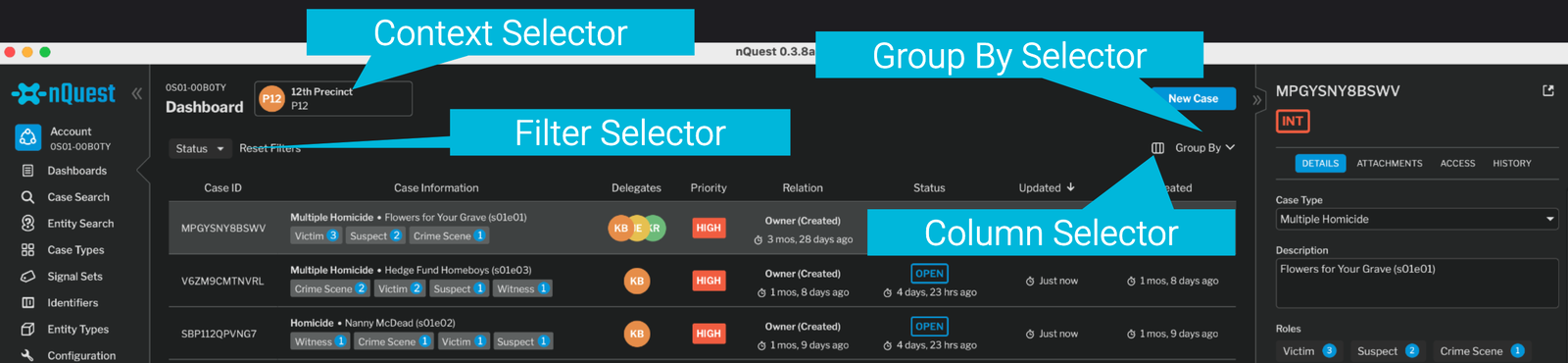
Dashboard with controls
Contexts
Section titled “Contexts”The Case Dashboard is viewed in a specific context, either as a user or as a group.
Cases can be owned by/assigned to either a user or a group. This context selector controls whether you’re acting as an individual user or as a member of a group.
Columns
Section titled “Columns”Changing columns
The column selector allows you to customize the appearance of the dashboard for your specific workflow. Unchecking a column will hide that column.
Filters
Section titled “Filters”Filtering
The drop down options in the filter selector allow you to filter the list by specific parameters.
Selecting a filter will hide any cases in the dashboard that do not qualify.
Click Reset Filters to show the full dashboard again.
Grouping
Section titled “Grouping”Grouping
Grouping allows organizing cases in the dashboard by an attribute. To reset a grouping, group by None.
Sorting
Section titled “Sorting”To sort by a column, click on the column header.