Links
Creating and Removing Links
Section titled “Creating and Removing Links”Creating a Link (Drag and Drop)
Section titled “Creating a Link (Drag and Drop)”To add a link, drag and drop the source node onto the destination node. Only one link may exist between two nodes.
Creating a Link (Left Panel)
Section titled “Creating a Link (Left Panel)”Links can also be created from the left panel. To create a link, select any node with a left panel you want to link (So not concept nodes) and type a search query for the node you want to link to. Select it from the results and a link will be generated.
Removing a Link (Delete Key or Left Panel)
Section titled “Removing a Link (Delete Key or Left Panel)”To delete a link, select the link and press the delete/backspace key.
Or, select the link and press delete link in the left panel.
Link Properties
Section titled “Link Properties”Link Directions
Section titled “Link Directions”Links have four possible directions. Upstream, Downstream, Bidirectional, and No Direction. These determine which direction the arrows point.
To set the direction, set the direction in the left panel, or right click on the link and select the arrow pointing in the direction you’d like.
Link Relation Blocks
Section titled “Link Relation Blocks”Link relation blocks track the specific way that two nodes are related.
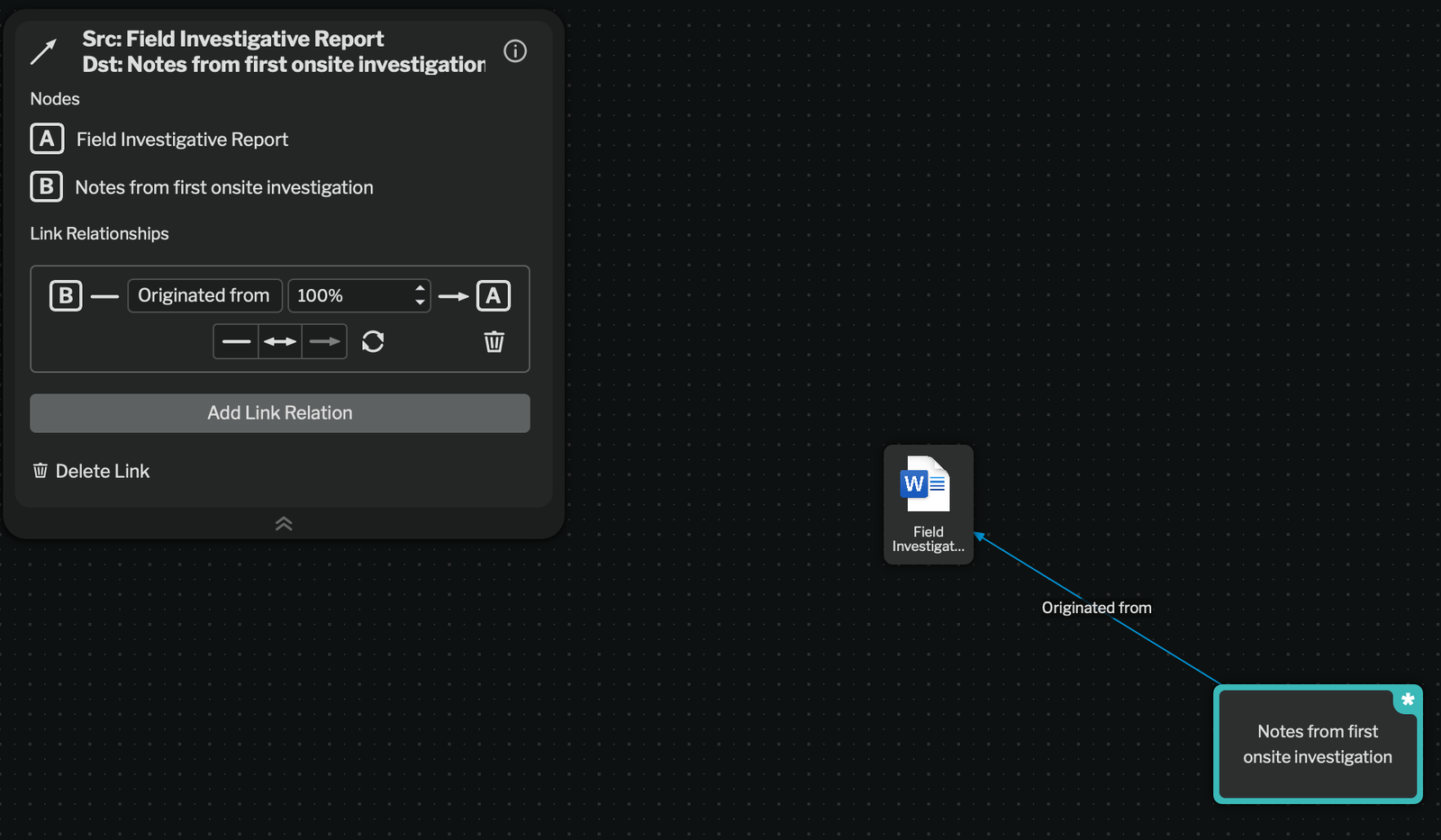
Link Relation Block
To understand a specific relation block, read from left to right.
Node B originated from (100% certain) Node A.
Multiple Relation Blocks on a Single Link
Section titled “Multiple Relation Blocks on a Single Link”Link Relation Blocks have order, and more than one can be on the same link. Drag and drop them while in edit mode to reorder. Click Add Link Relation to add a new relationship block.
Reordering link relation blocks
Link Appearance w/ Relation Blocks
Section titled “Link Appearance w/ Relation Blocks”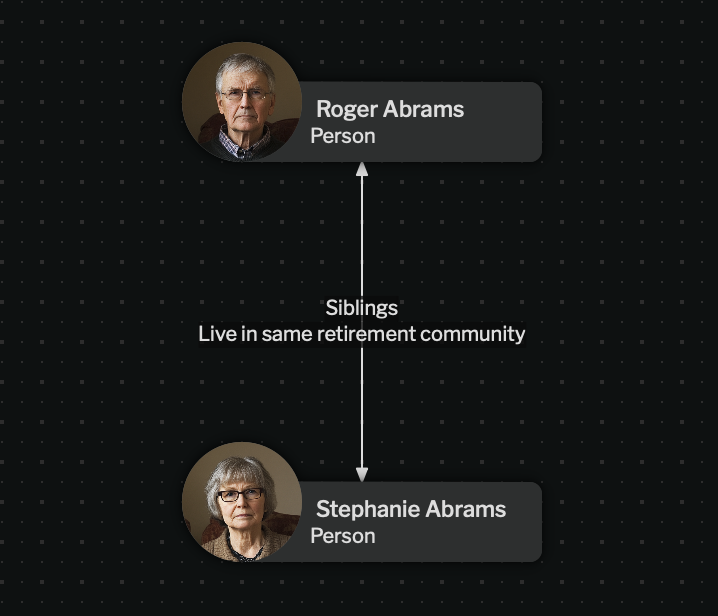
Link relation blocks are combined to build the resulting visual link. If some (but not all) directional links have an arrow on one side, that link arrow will be hollow.
Relations will be displayed in order of the blocks.
Link Uncertainty
Section titled “Link Uncertainty”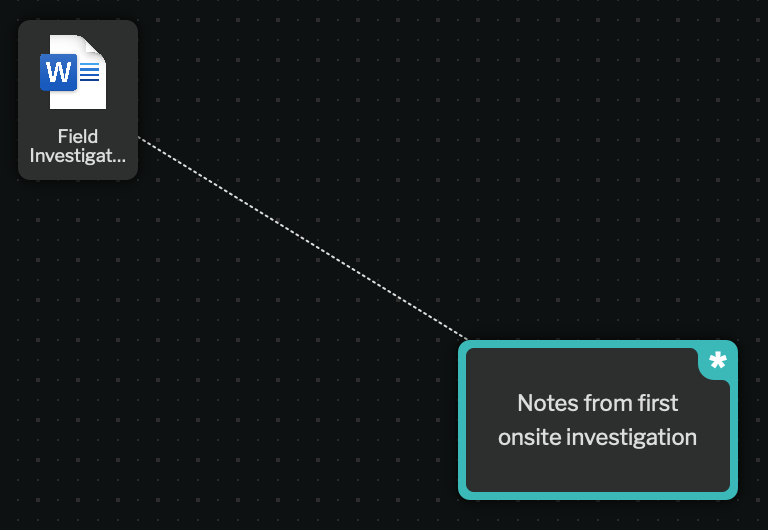
Relationship blocks can have a certainty.
If uncertainty is enabled in library settings, you can set a relationship block to less than 100% certain. For more information on library settings, see Library Settings.
Visually, if any relation for the link is <100% certain, then the link is shown as a dotted line.
Managing Links in the Node Left Panel
Section titled “Managing Links in the Node Left Panel”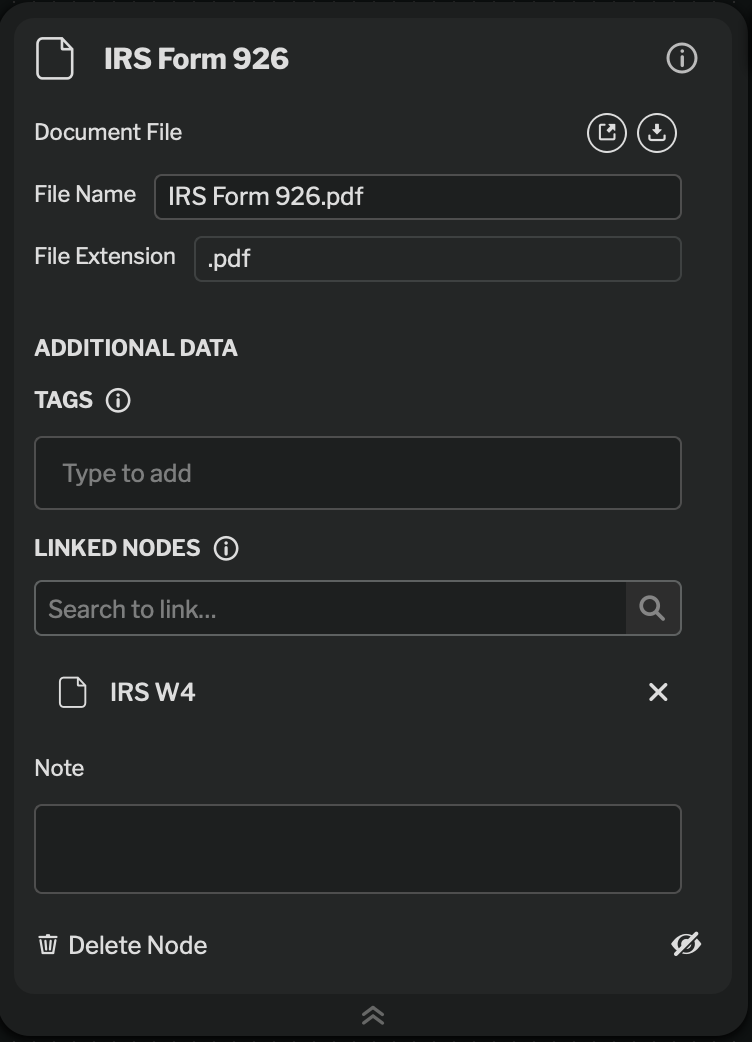
Node Left Panel
The node left panel provides a way to manage links for a node. To go to any node linked to that node, click the node in the Linked Nodes list.
To delete the link, click the X icon next to the node.