Working with Cases
Opening and Closing Cases
Section titled “Opening and Closing Cases”Creating a Case
Section titled “Creating a Case”Creating a Case
To create a case, select the context you’d like to create the case in, and click New Case. If the New Case button does not appear, you may not have permissions to create cases in that context.
When creating a case, you can type an initial description, select compartments, and select a case type.
Once you create a case, that case opens by default. It may take a few seconds before the case appears in the case list.
If you create a case in a group context and are not a group admin, the case is delegated to you by default. For more details on delegation, see Delegates.
Closing a Case
Section titled “Closing a Case”Close Case
As an owner of a case that is not closed, you can close a case. This allows setting an outcome, and prevents future edits to the case (unless it’s reopened).
To close a case, select the Close button, type a note in the Close dialog, and press submit.
Reopening a Case
Section titled “Reopening a Case”Reopen Case
To reopen a case, select the ‘Reopen’ button, provide an optional note in the Reopen dialog, and press submit.
Archiving a Case
Section titled “Archiving a Case”Cases are automatically archived after two weeks of closure. Once a case is archived, it no longer shows in dashboards, and can only be viewed via search.
Deleting a Case
Section titled “Deleting a Case”Delete Case
A closed or archived case can be deleted. To delete a case, press Delete Case, enter an optional note in the Delete Case dialog, and press submit.
The case will be moved into Pending Deletion status, and will be deleted 7 days later automatically, unless the account is set to delete protected.
Restoring a Case
Section titled “Restoring a Case”Restore Case
To restore a case that’s pending deletion, select Restore on the case, provide an optional note in the Restore dialog, and press submit.
The case will be restored as a closed case.
Case History Tab
Section titled “Case History Tab”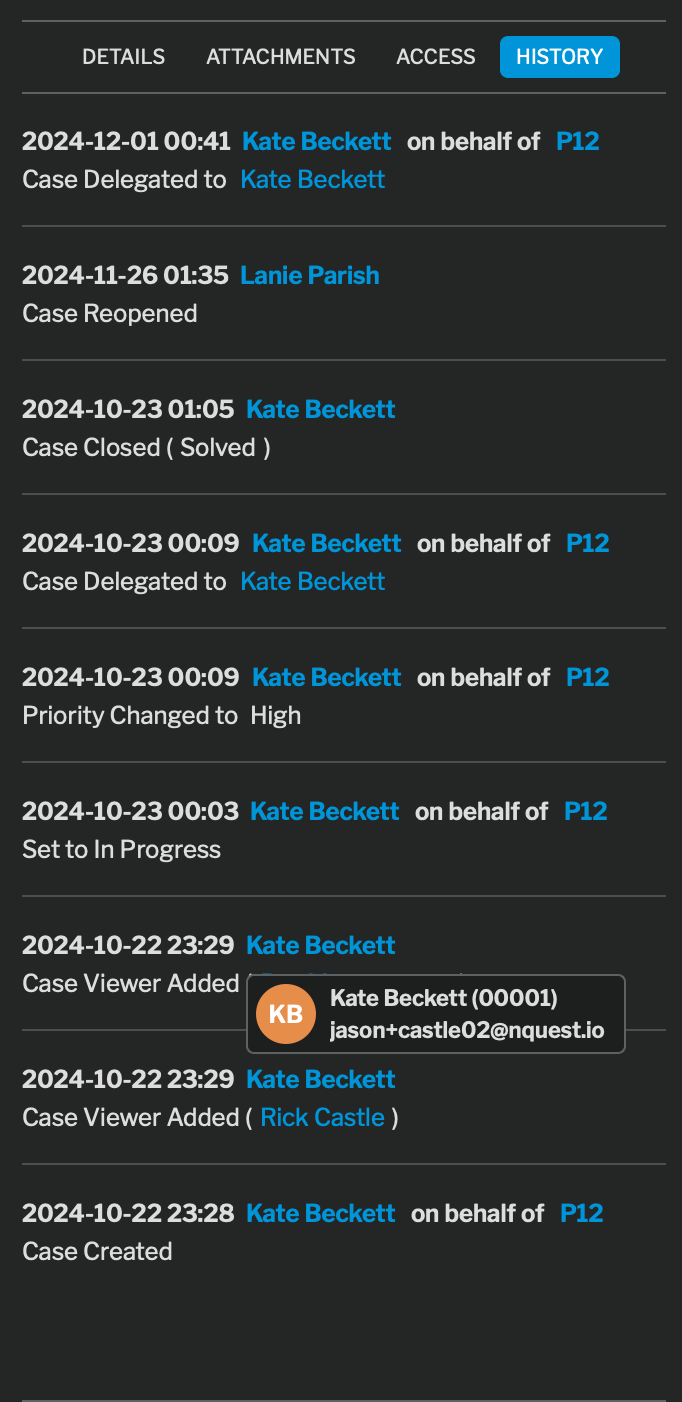
Case History Tab
Case history allows viewing the workflow history of a case. It shows workflow steps, notes, and other actions taken on the case.
To show the information card for a user or group, mouse over the name of the user or group.
Adding a Note
Section titled “Adding a Note”Add Note
To add a note to history, select the add note button (next to Start Progress on the bottom left of the workflow widget).
Type your note, and press submit. The note will be added to the case history.