Case Files
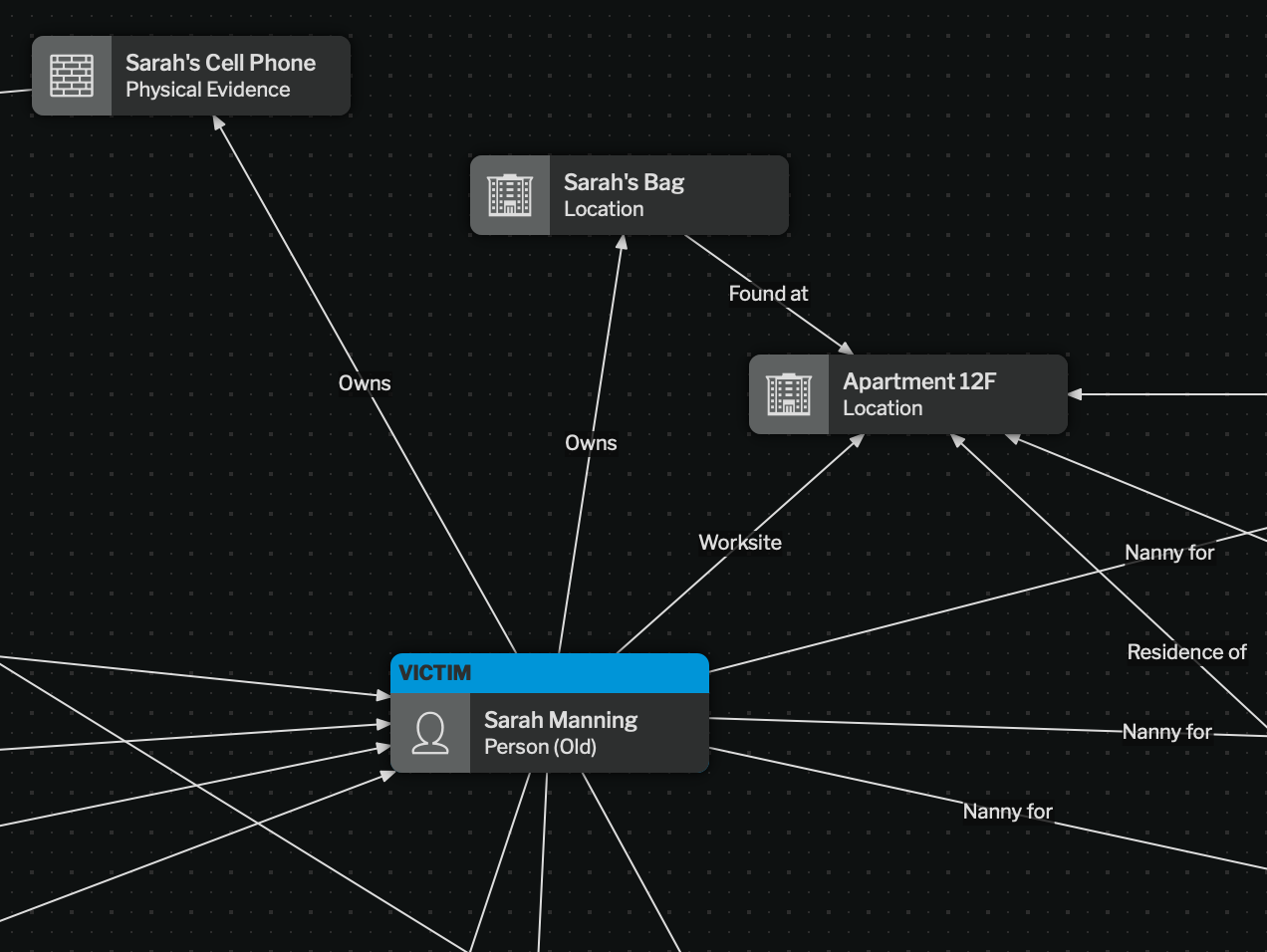
Case File
Cases are made up of nodes, which can be items of evidence like files, websites, browser snapshots, entities (such as people, companies, and accounts), or simple text callouts.
Nodes can be joined together by links, which represent relationships.
View Mode
Section titled “View Mode”Two views are available:
| View | Displays | Nodes | Links |
|---|---|---|---|
| Graph View | Selected nodes, which can be added or removed | Nodes are objects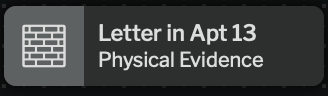 | Links are lines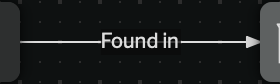 |
| List View | All nodes | Nodes are rows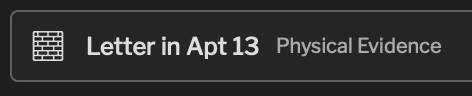 | Links are indents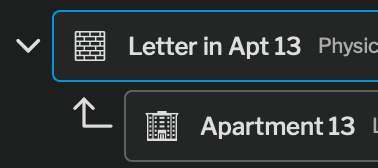 |
Graph View
Section titled “Graph View”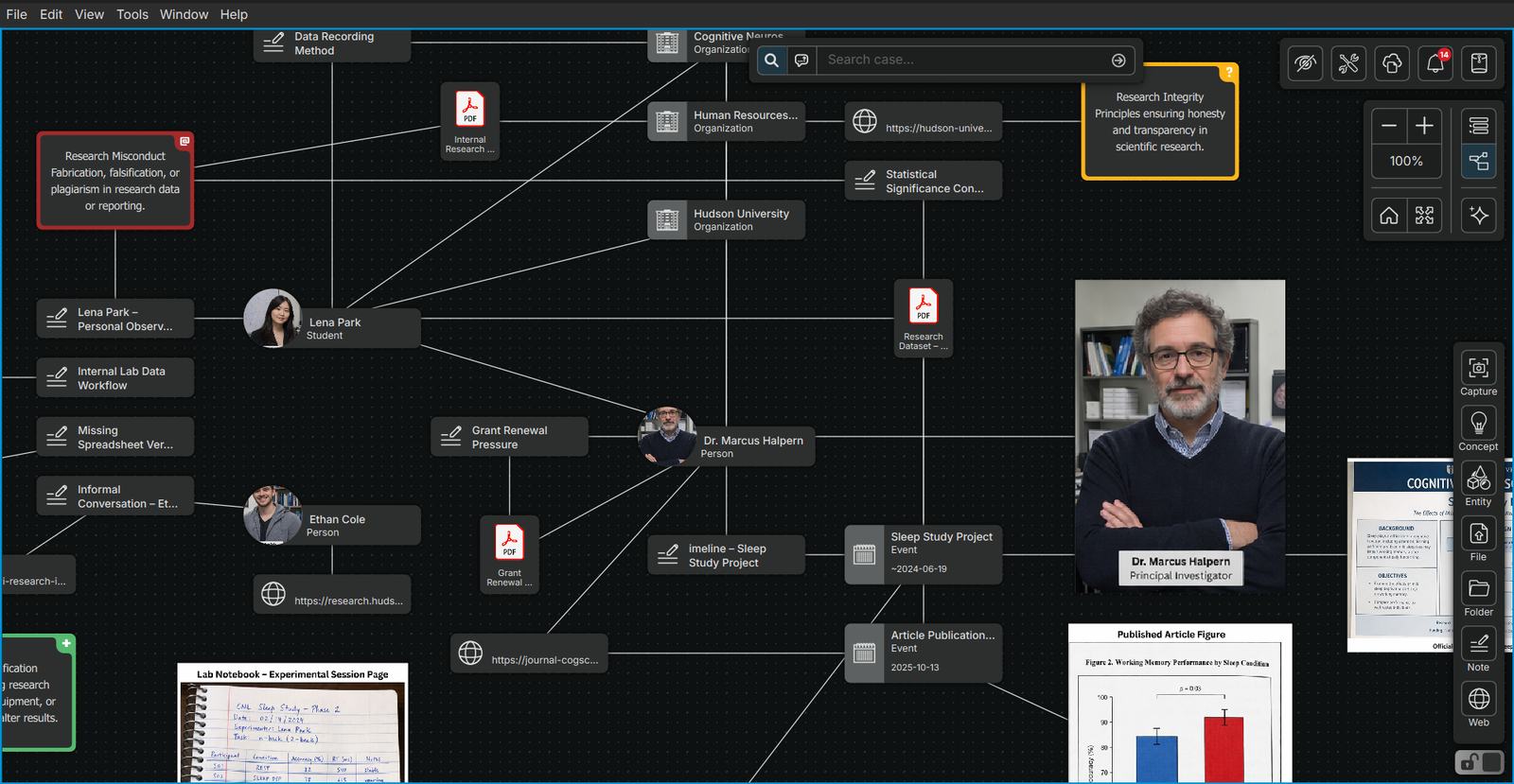
Graph View Controls
Camera Controls
Section titled “Camera Controls”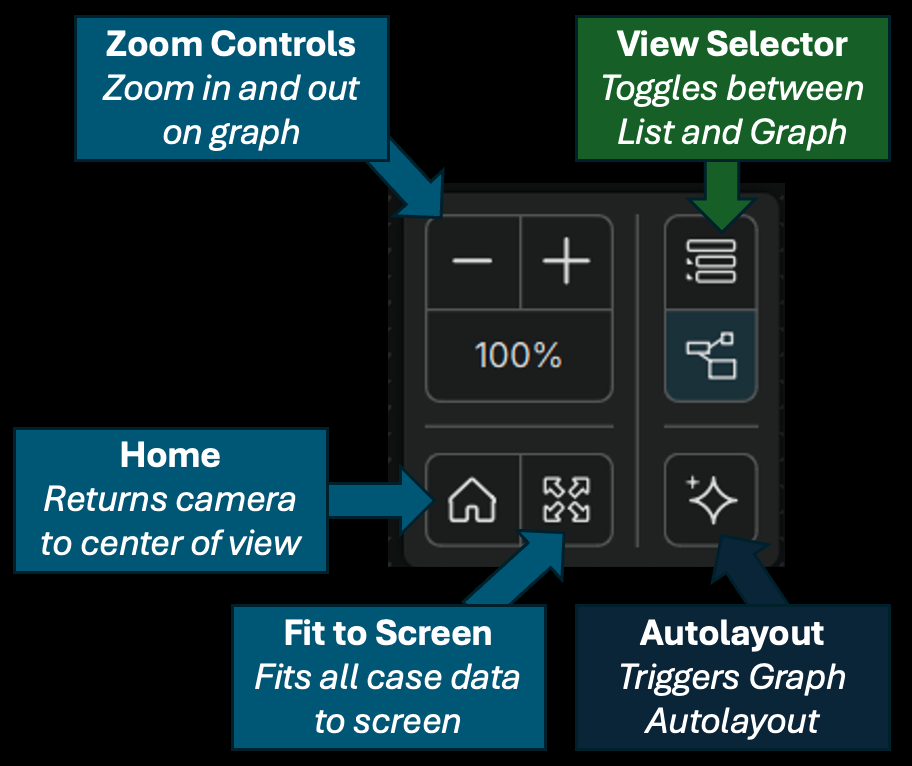
Camera Controls
The camera controls allow management of the view. Most camera controls are graph only.
Graph View Overlay Modes
Section titled “Graph View Overlay Modes”In Graph View, overlay modes can be applied. These overlay modes provide quick visual processing tools to help understand a complex case. These are accessible in the view menu.
Added Time Overlay
Section titled “Added Time Overlay”Added Time Overlay
The time overlay color codes items in the graph by the recency of the time they were added to the graph. This provides an at-a-glance visual for what areas of the case are currently active.
Hiding Nodes from the Graph
Section titled “Hiding Nodes from the Graph”To hide a node from the graph, select the hide node button in the left panel. This node (and all of its’ associated links) will disappear from the graph view. It will still be visible in list view. Any contents of the node and link are preserved on the case.
Hiding a Node
To unhide the node, see Adding Nodes to Graph View.
List View
Section titled “List View”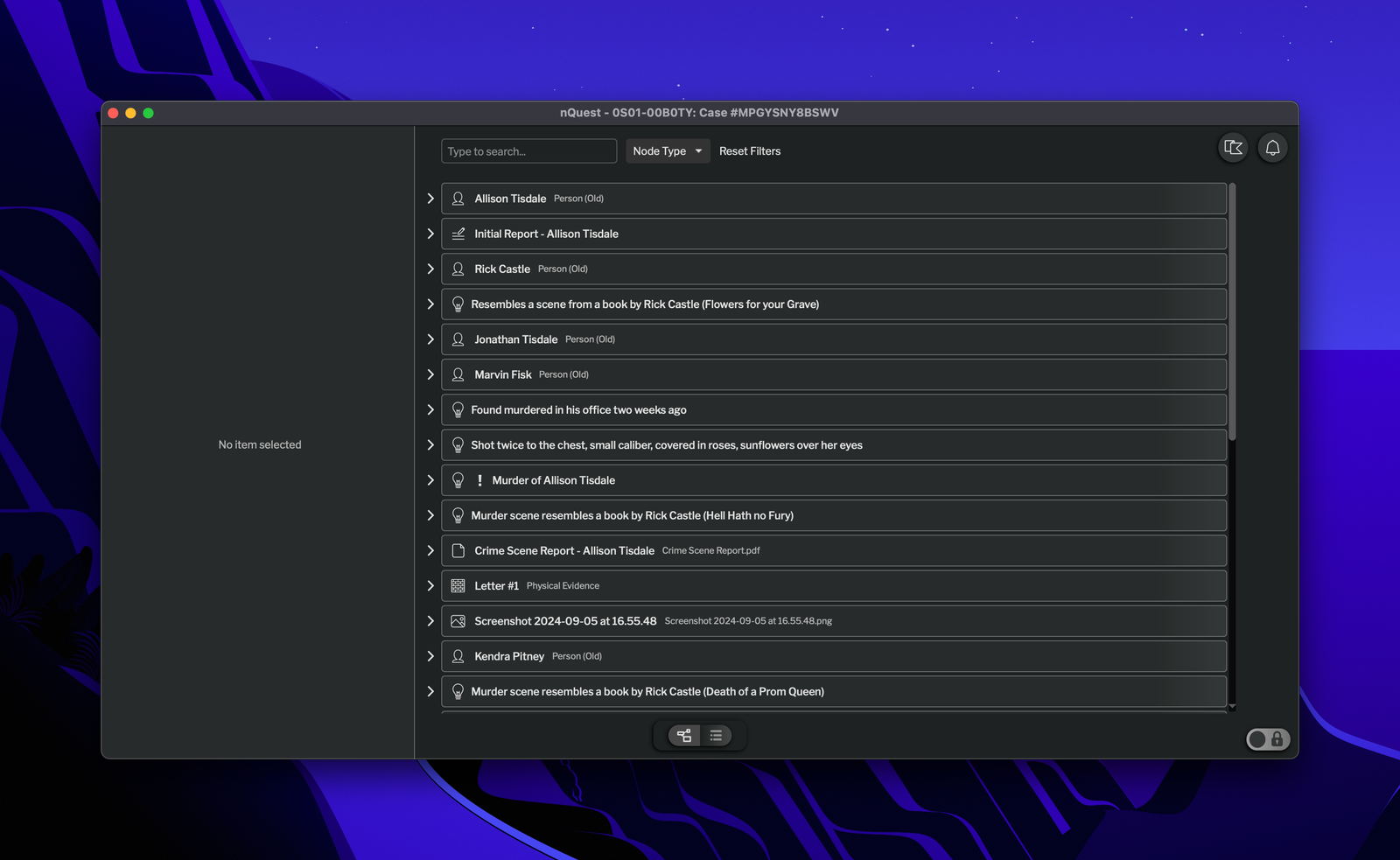
List View
Clicking on a node in list view will open the node in the left panel. It will also expand any linked nodes as nested items underneath the primary node.
Filtering Nodes in List View
Section titled “Filtering Nodes in List View”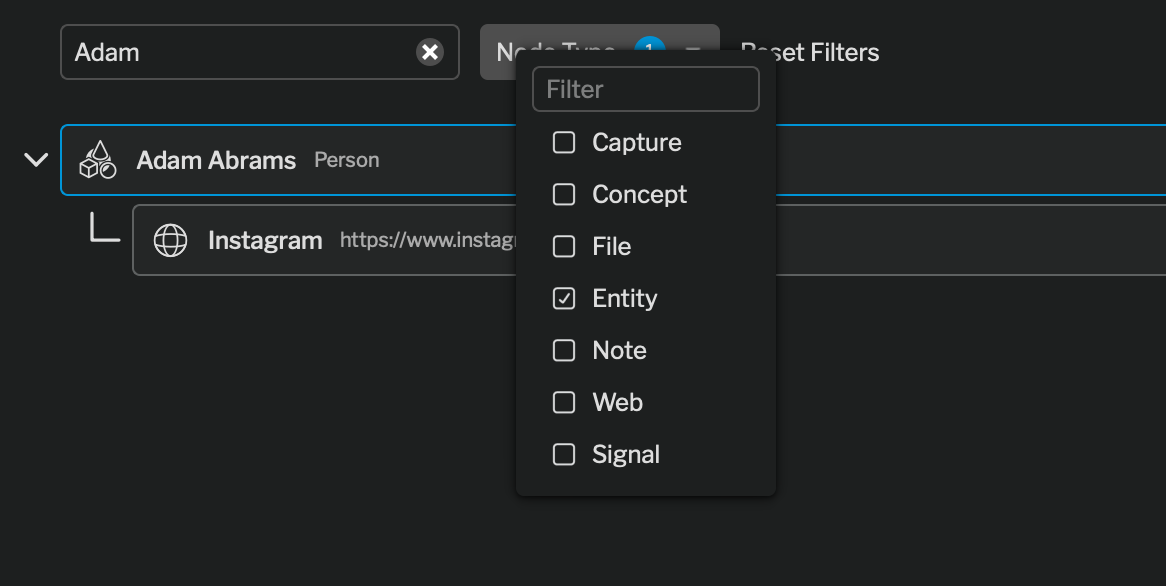
List View Filters
At the top of the list view, there are filters for each node type and a search bar. This only filters the nodes in the primary list - all linked nodes will always show.
Adding Nodes to Graph View
Section titled “Adding Nodes to Graph View”
To add a node that is not currently in the graph view, select the add node into graph button on the node in list view.
View-Agnostic Features
Section titled “View-Agnostic Features”Edit Lock and Read Only
Section titled “Edit Lock and Read Only”In order to edit a case file, the case must be unlocked. Only one user can edit a case at a time. Users must have edit permissions to unlock the case. If a case is in read only mode, the lock controller will be replaced with a read only icon.
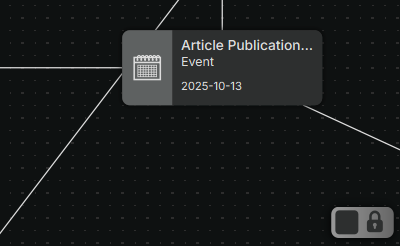
- To unlock a case, select the unlock case indicator in the bottom right corner of the case file.
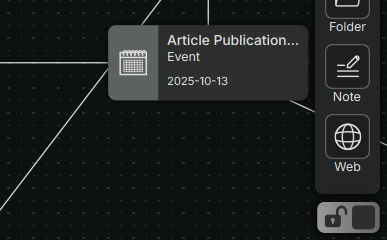
- To lock the case, select the lock case indicator below the node add options.
Notifications
Section titled “Notifications”Notifications
When expanded, the notifications tray provides status of file uploads and downloads that are pending. Additionally, any errors that occur will be displayed here, along with a red callout directing your attention to the notifications window.
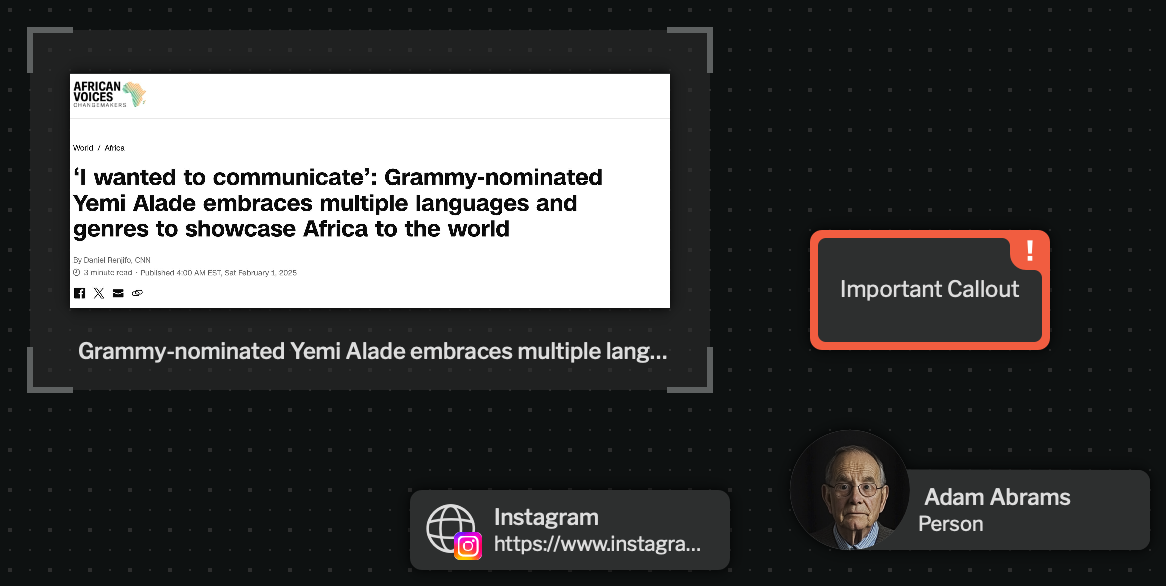
Nodes
Nodes are data points within an investigation - evidence, notes, and objects that are tied to the investigation. They are the basic building blocks of cases.
For more information on nodes, see Nodes.
Links represent connections between two nodes. They can have directionality, uncertainty, and a relationship type.
For more information on links, see Links.