
Choose the Part Worth Keeping.
Page Capture
Keep a snapshot of the page as source material you can return to in the case.
Text Capture
Keep the passage that matters together with a page capture showing its surrounding context.
Frame Capture
Keep a selected region, such as a profile image or promotional detail, along with its page context.
Keep Web Research with the Rest of the Case.
You can place a captured profile beside an interview note, a supplied record, and a photograph. In one nQuest case, you can connect those details and ask AI questions about all of the collected material.
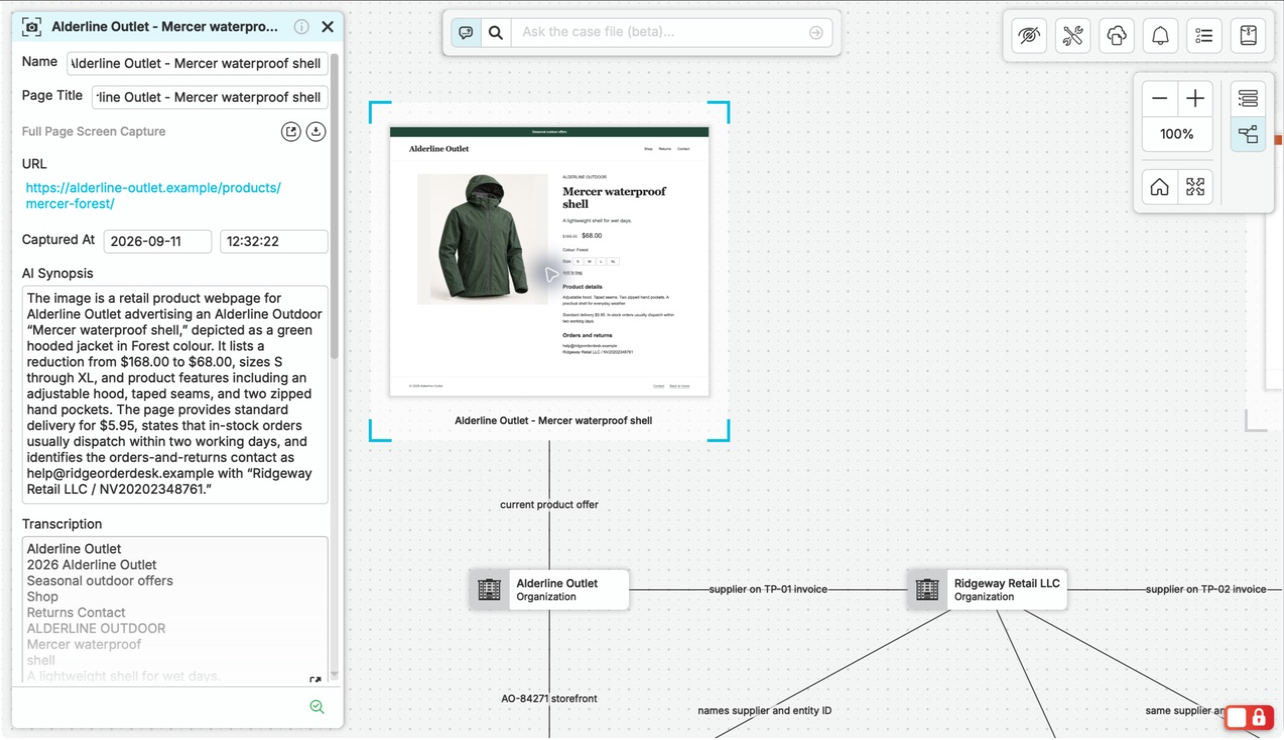
Start in a newly created empty nQuest case in graph view. Open the connected extension, choose Frame Capture, and draw around the product image and offer details. After the browser handoff, open Available Captures, choose Add to case, and finish with the captured frame placed as the graph’s first node, with its source URL, collection time, and upload confirmation visible.
Return to What You Saw, Even When the Page Changes.
Your capture keeps the collected material with its source URL and collection time. The detail that mattered stays available in the case when the live page changes or the investigation resumes.
A shared contact email on two storefronts is easier to explain when both source captures are beside the connection. You have the detail, where it appeared, and the surrounding page to draw on.
Return to the Source When the Question Changes.
Find a capture with AI-powered search, open a referenced capture from a case answer, or follow its connections in the graph. Earlier collection stays within reach when a new question sends you back to the sources.
Questions Worth Asking.
Which browsers can I use?
Use Chrome, Firefox, or Edge on Windows and macOS, or Chromium and Firefox on Linux. The Support Center provides official extension links and installation steps.
How is a capture different from adding a web link?
A web node points to the current page at a live URL. A browser capture keeps the material you collected, with its source URL and collection time, so you can return to it in the case.
How do captures reach my case?
They arrive in the desktop capture manager, ready to add to the case you choose. You can also copy a capture into a case while retaining it in the manager.