
Capture Nodes
nQuest has a browser extension for Chrome, Edge, and Firefox. We also have a plugin for the Shelter discord client. These tools allow making timestamped captures of data from the web and ingesting them into a case.
The extension offers three browser capture actions:
- Full Page Capture, including supported scrolling panels
- Text Capture
- Frame Capture
We also support one type of Discord capture:
- Discord Message Capture
For information on installing capture tools, see Installing Capture Tools.
Browser Capture
Section titled “Browser Capture”To add a browser capture node to a case, first perform the capture in your browser, then go to your case and select the capture node from the add nodes tray. This will bring up a list of available captures.
Full Page Capture
Section titled “Full Page Capture”Full Page Capture collects the vertical page beyond the first screen. The extension scrolls the page and assembles the captured sections. Long captures may be saved in several ordered image parts.
Full-page collection, explicit copying into a case, and original inspection
- Open the source page and wait for the material you need to load.
- Open the connected nQuest extension and select Full Page Capture.
- If the page has more than one candidate scrolling panel, choose the panel you want to collect. A panel capture preserves that panel, rather than the whole surrounding page.
- Keep the tab active while capture progresses. Press Esc to cancel; leaving the tab also cancels capture.
- Wait for Saved to nQuest, then open Capture Node in your case to add or copy the saved capture.
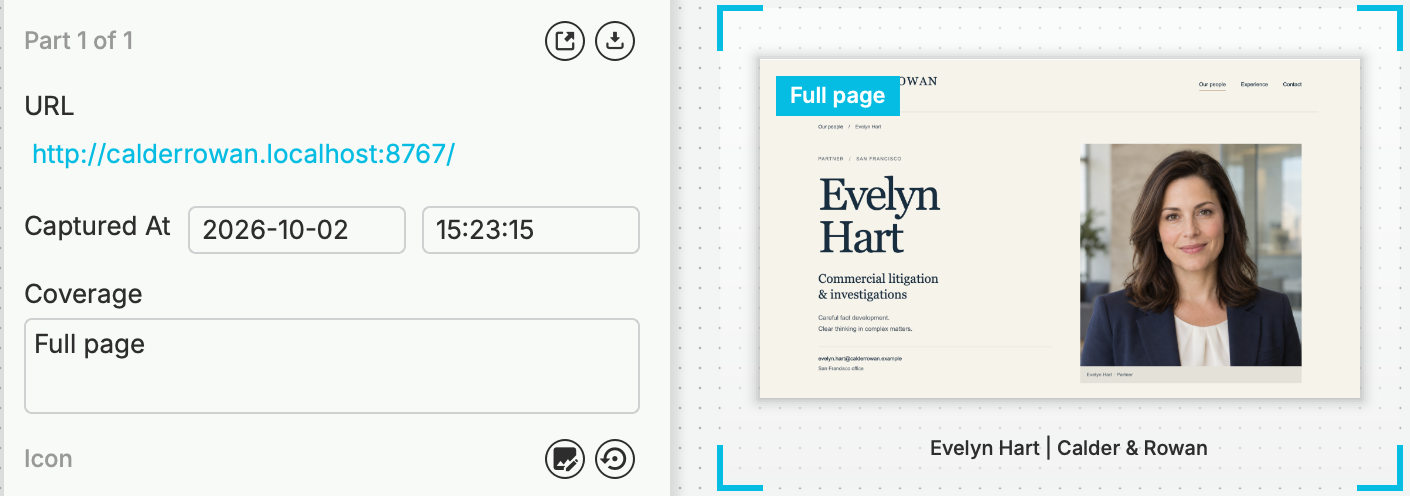
Full-page capture preview with its source URL, collection time, and coverage
The Full Page / Text Capture shortcut captures selected text if there is a selection; otherwise it requests a full-page capture. The default is Alt+Shift+C on Windows and Linux, or Ctrl+Shift+C on macOS. The extension popup displays the shortcut assigned by your browser, which may differ from the default.
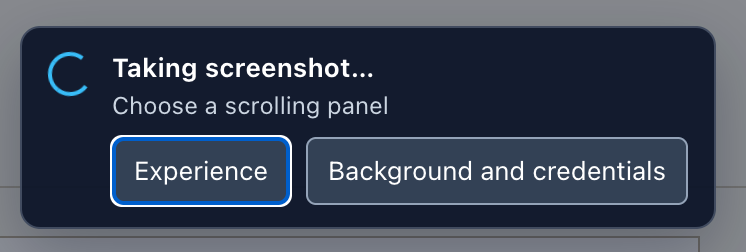
Choosing which scrolling panel to capture
Reviewing a Capture
Section titled “Reviewing a Capture”The graph preview shows the top of a full-page or scrolling capture. Double-click the node to open the original capture reader. Scroll through the image and use Previous part and Next part when the capture contains multiple parts. Open original opens the current original image separately.
Check the source URL and collection time in the node’s details. For full-page and scrolling captures, also review Capture coverage:
- Full page: the captured vertical page.
- Scrolling panel: the selected scrolling region, rather than the whole page.
- Partial capture: only the retained portion; the details explain why collection stopped.
Read any warnings about loading content, changing layouts, or image joins. Confirm that the detail you need is present and readable in the original, rather than relying on the thumbnail.
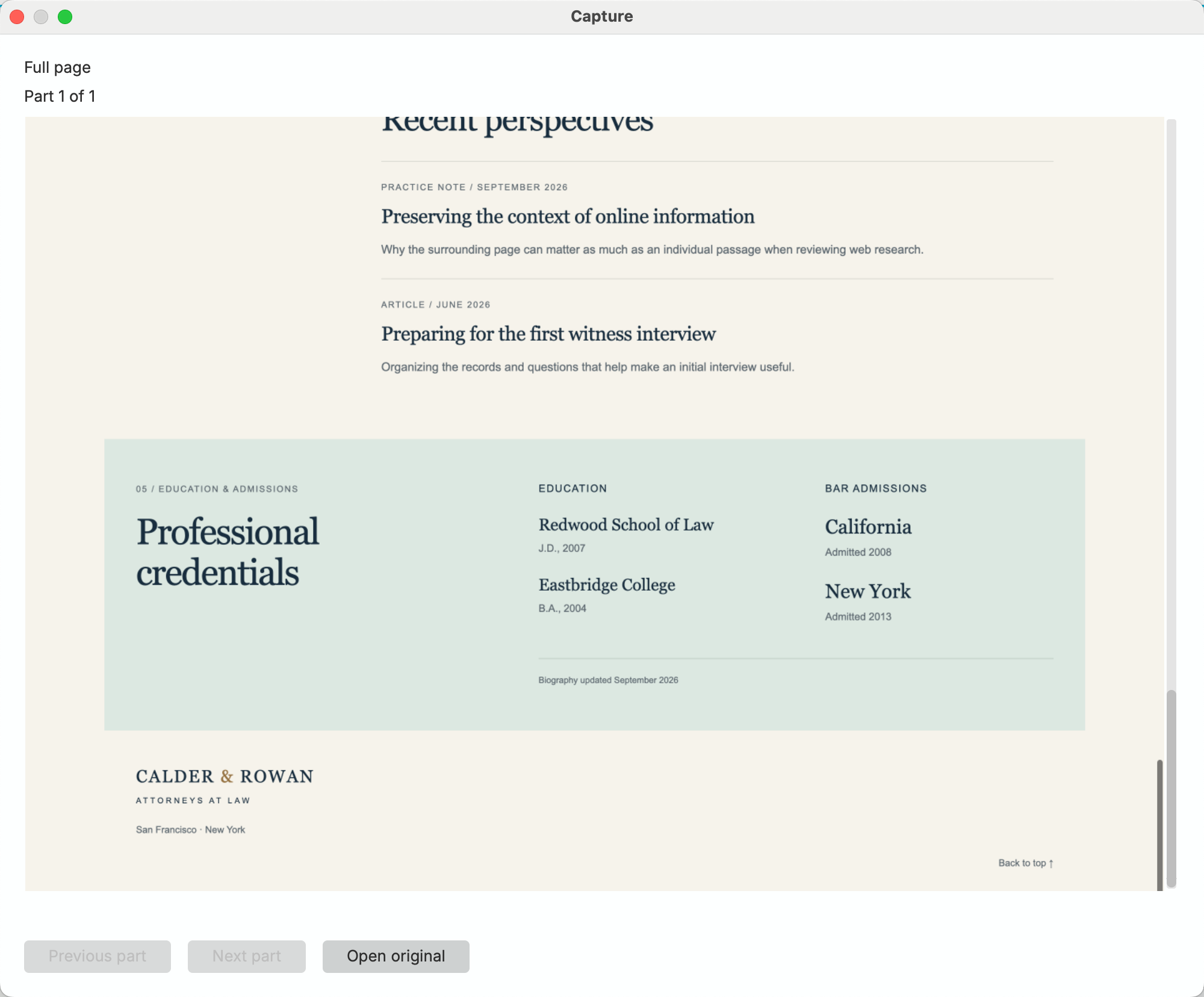
Full-page original showing education and admissions below the first screen
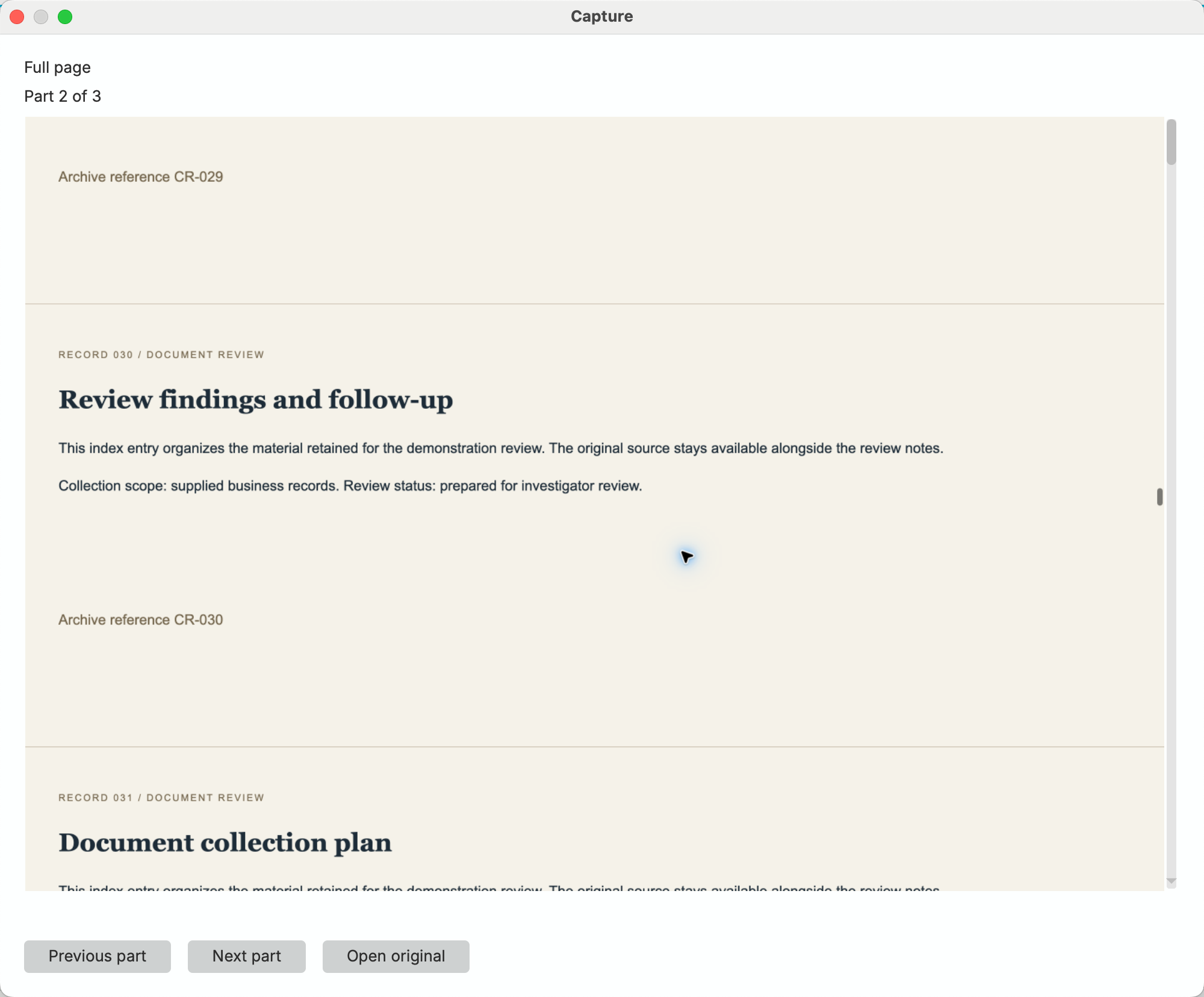
Original reader showing an ordered image part and part-navigation controls
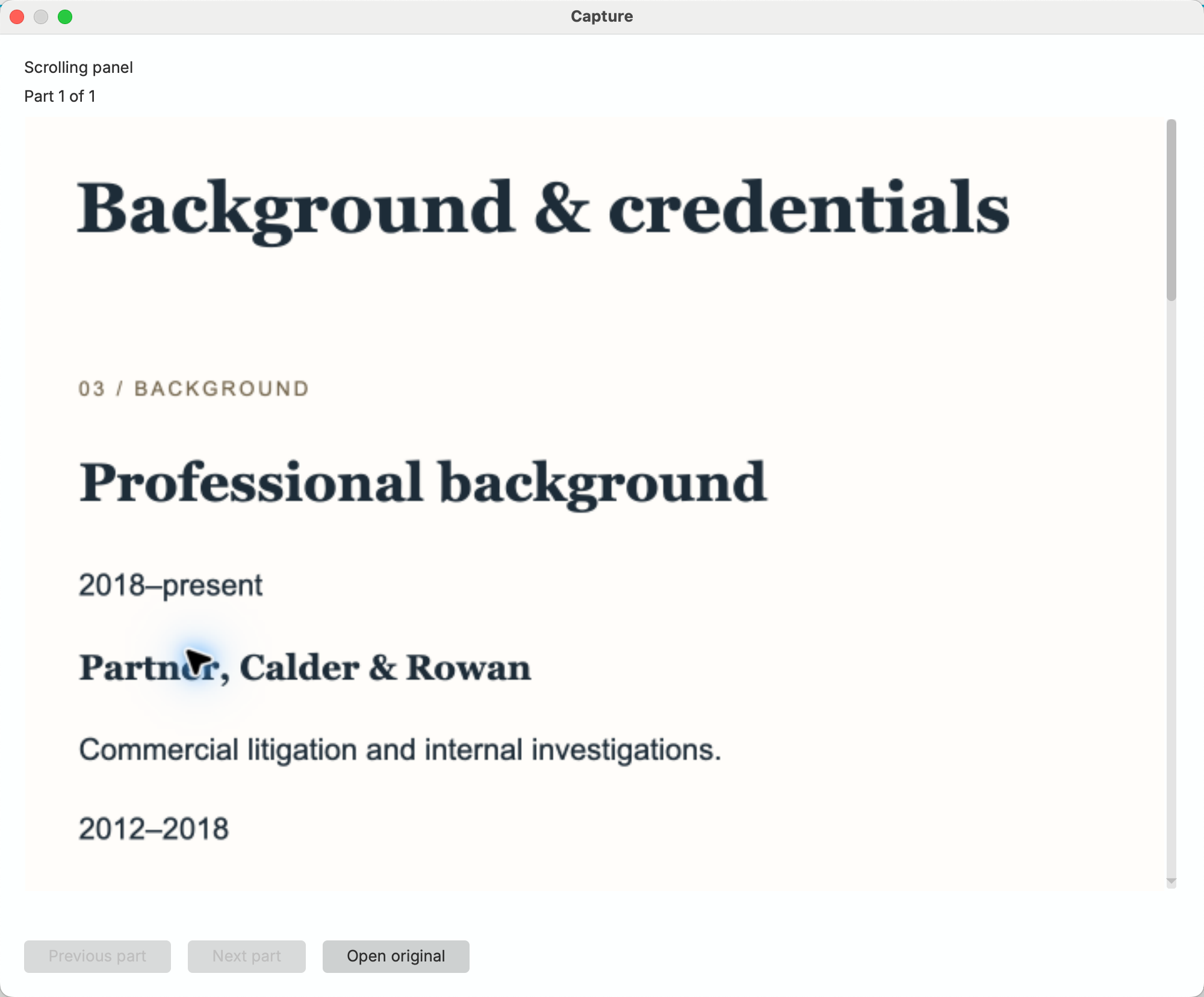
Original reader showing Scrolling panel coverage
Partial Captures and Visible-Page Fallback
Section titled “Partial Captures and Visible-Page Fallback”A page may keep growing or changing, exceed capture limits, or include unsupported scrolling areas. When a captured portion can be retained, the extension asks you to choose Save partial capture or Discard. A partial capture is not silently saved as a complete one.
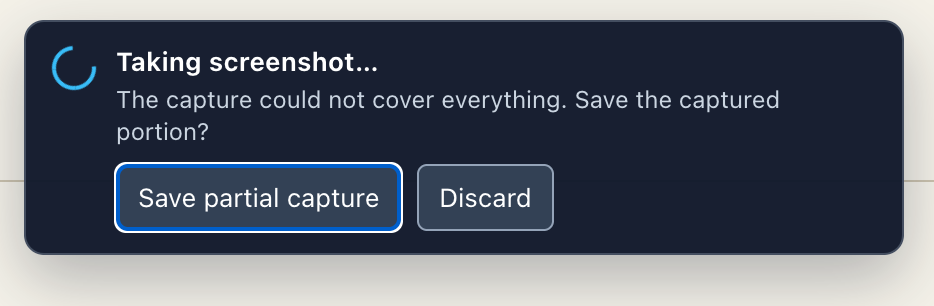
Save partial capture or discard after collection stops
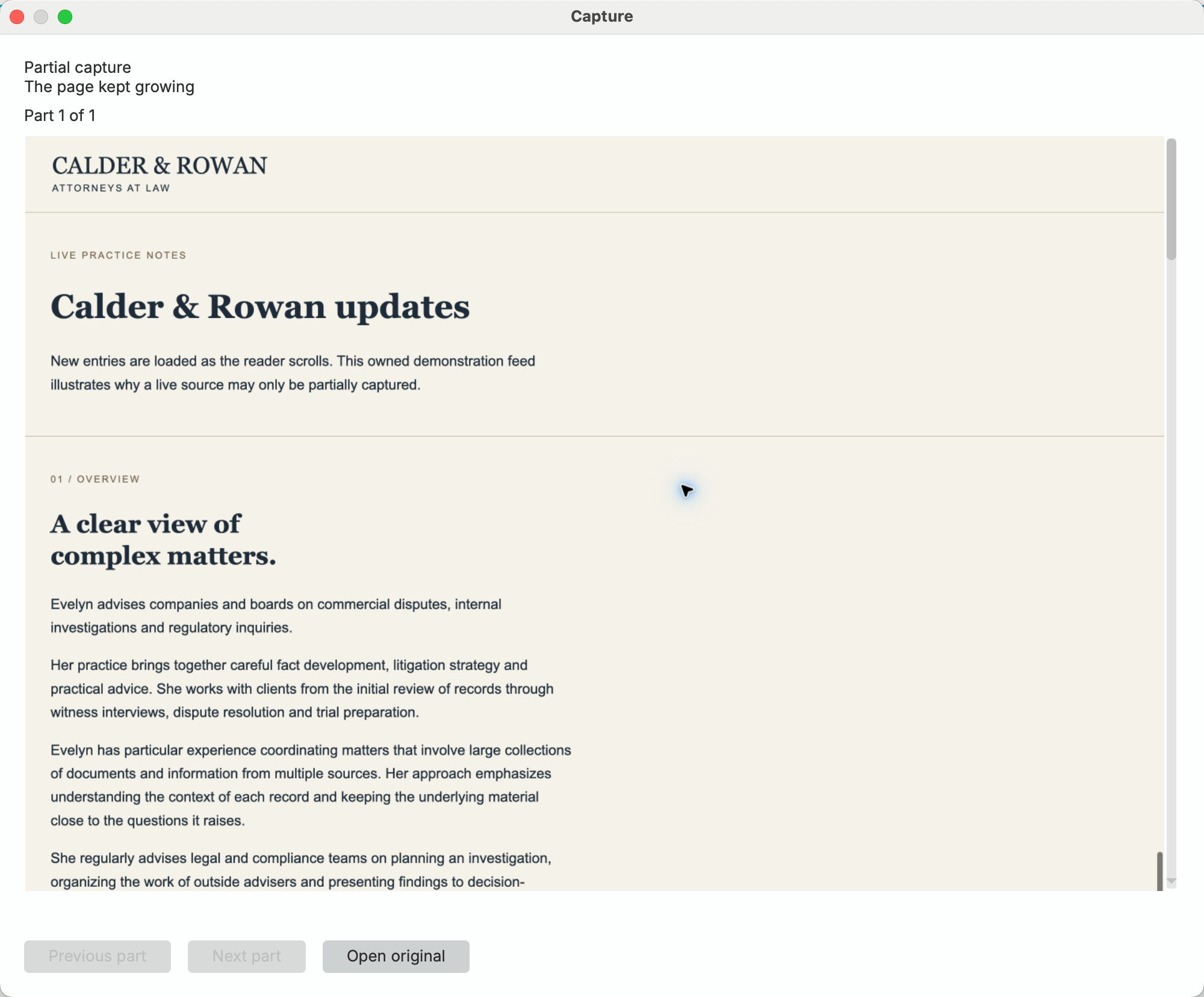
Accepted partial original showing why collection stopped
When full-page capture is unavailable and a visible-page fallback is used, the extension reports Full page unavailable — saved a Page Capture instead. That Page Capture preserves the visible screen, not the complete page. Older desktop versions or tabs loaded before an extension update may use this fallback; update both tools and reload the source tab before trying again.
Full-page capture does not collect horizontal scrolling or scrolling inside embedded pages from another site. Some application panels are inaccessible to the extension. Check the saved scope even when capture finishes successfully.
Recovering an Interrupted Save
Section titled “Recovering an Interrupted Save”With current capture tools, an interrupted save may leave recoverable sections in the desktop capture manager for 24 hours. Open Capture Node to check for an interrupted capture:
- Use Retry save when the complete draft is available.
- Use Save partial capture to retain the available sections of an unfinished capture, or Discard to remove the draft.
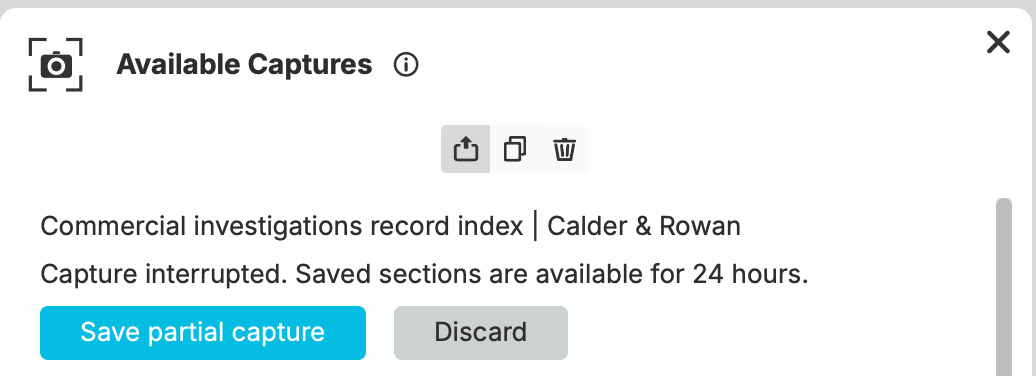
Interrupted capture with saved sections available to retain or discard
After recovery finishes, add or copy the capture into your case and inspect its coverage and warnings. Recovery preserves saved sections; it does not resume browsing or collect the missing part of the page.
Text Capture
Section titled “Text Capture”Text Capture nodes allow you to take an immutable snapshot of text from a given site and ingest it into the case.
To perform a text capture, select the text you’d like to capture in your browser and then select Text Capture from the browser extension menu. You can also use the Full Page / Text Capture shortcut: Alt+Shift+C on Windows and Linux, or Ctrl+Shift+C on macOS by default.
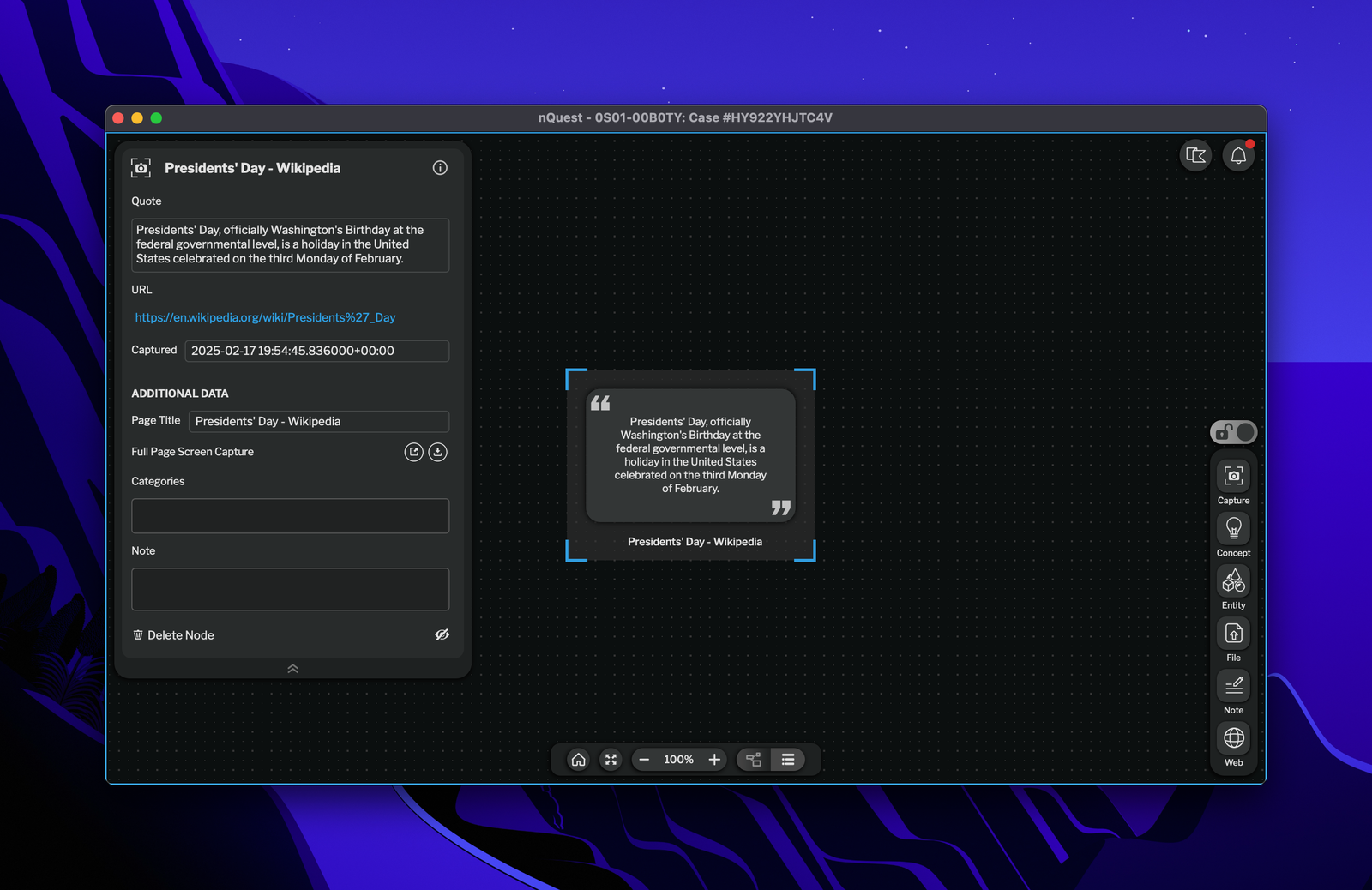
Text Capture Node in Graph
Frame Capture
Section titled “Frame Capture”Frame Capture nodes allow you to take an immutable snapshot of an image from a given site and ingest it into the case.
To perform a frame capture, select Frame Capture from the browser extension menu, then drag a rectangle around the area you want to keep. The default shortcut is Alt+Shift+X on Windows and Linux, or Ctrl+Shift+X on macOS. Check the extension popup for your browser’s assigned shortcut.
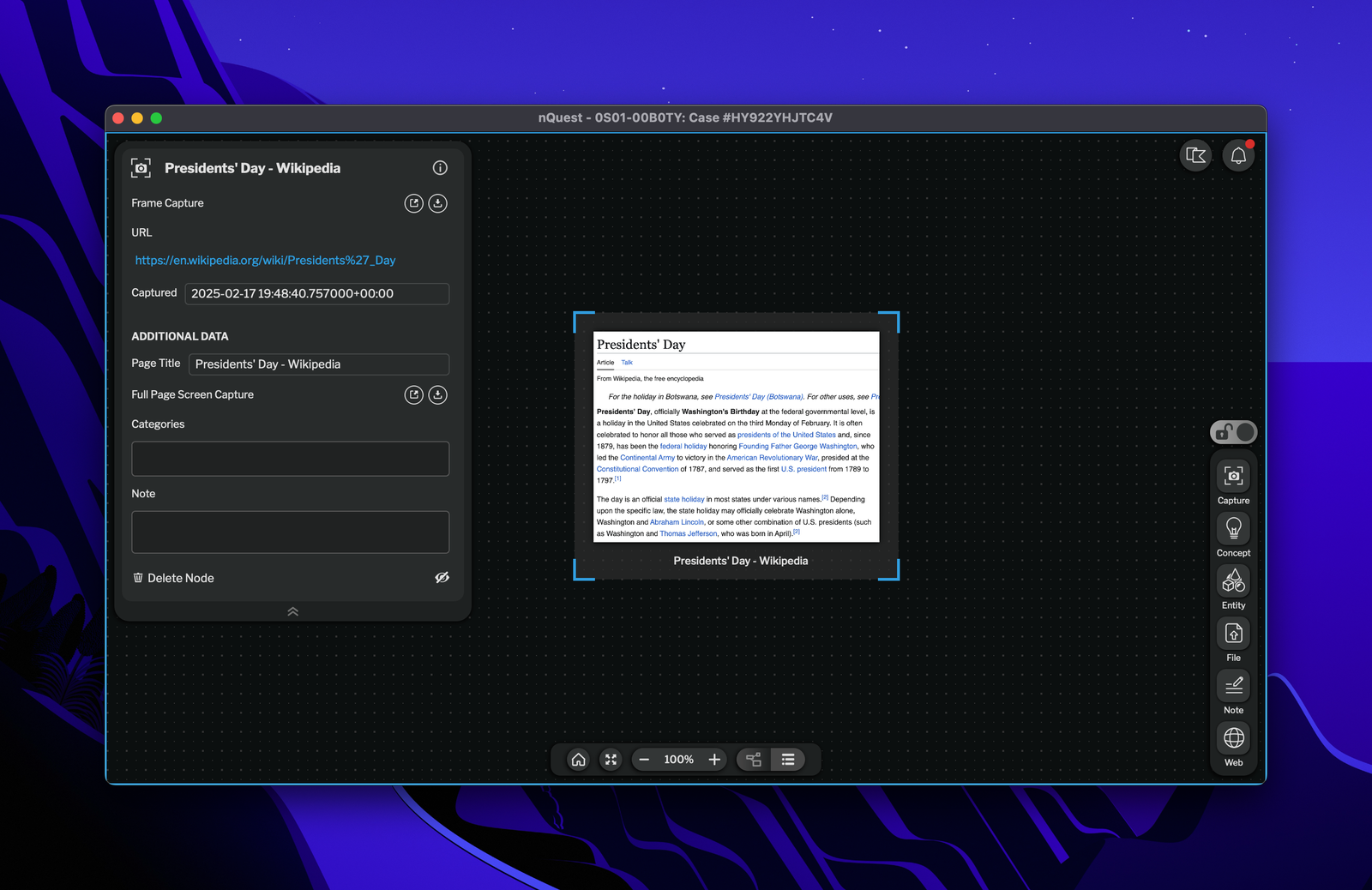
Frame Capture Node in Graph
The Capture Manager
Section titled “The Capture Manager”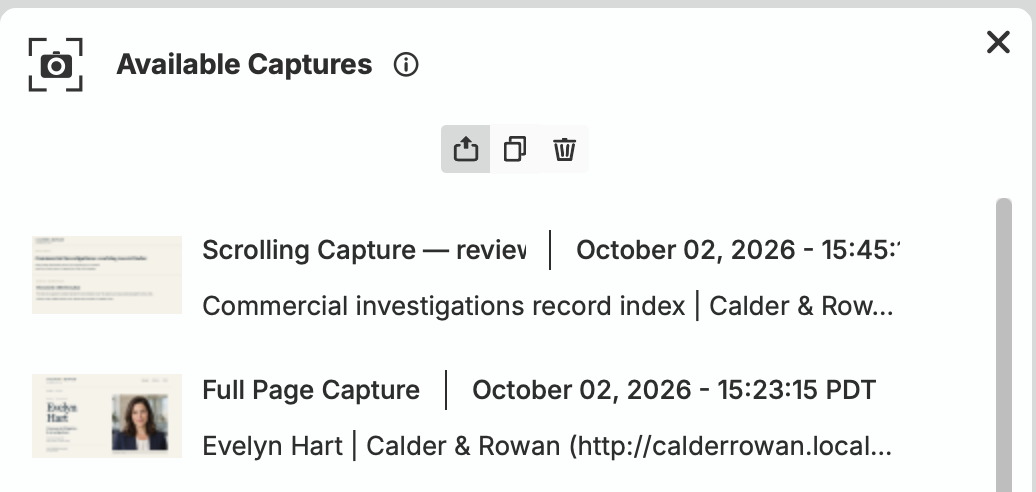
Capture Manager
When Capture Node is selected from the add node menu, Available Captures opens. This capture manager lists material saved on your system, ready to add or copy into a case. Capturing in the browser does not automatically add a node to the case.
Full-page captures have a top preview. A scrolling capture may contain a panel, several image parts, or an explicitly accepted partial capture; review its coverage after adding it to the case.
The mode selector at the top of the capture manager determines what happens when you click on a capture in the capture manager.
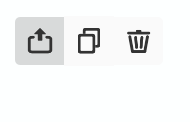
Capture Manager Mode
Adding a Capture to a Case
Section titled “Adding a Capture to a Case”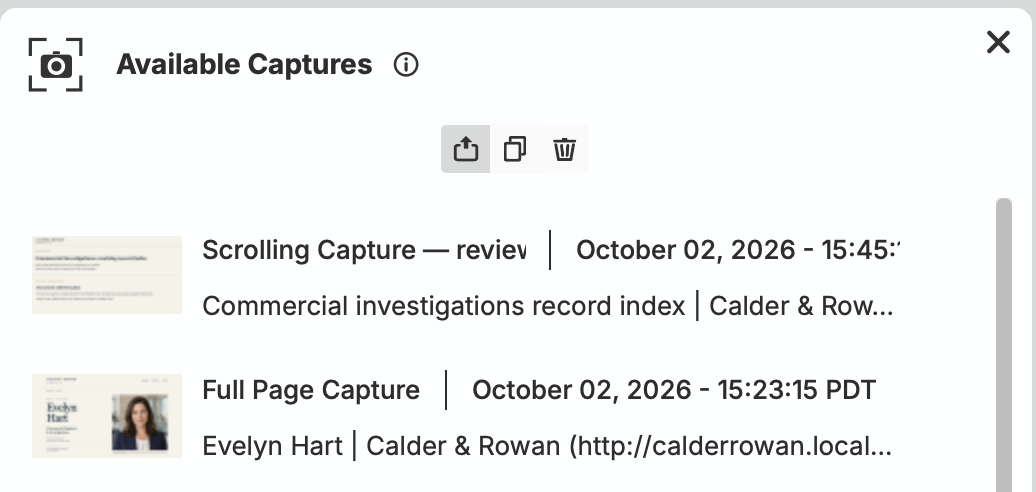
Capture Manager Add
To add a capture to the case, select Move in the mode selector, then click the capture. Wait for it to finish adding. A successful move removes the capture from the manager.
Copying a Capture to a Case
Section titled “Copying a Capture to a Case”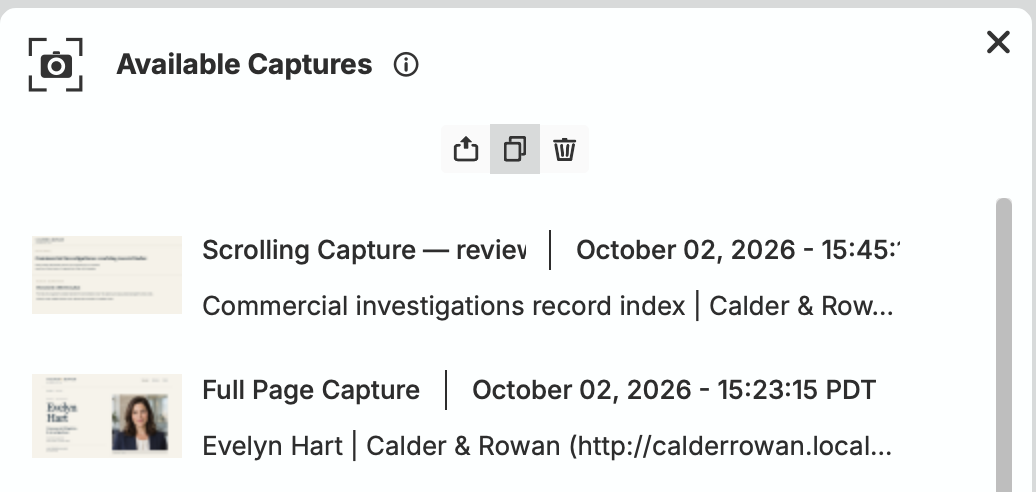
Capture Manager Copy
To add a capture while keeping it available in the capture manager, select Copy in the mode selector, then click the capture. Wait for it to finish adding.
Removing a Capture from the Capture Manager
Section titled “Removing a Capture from the Capture Manager”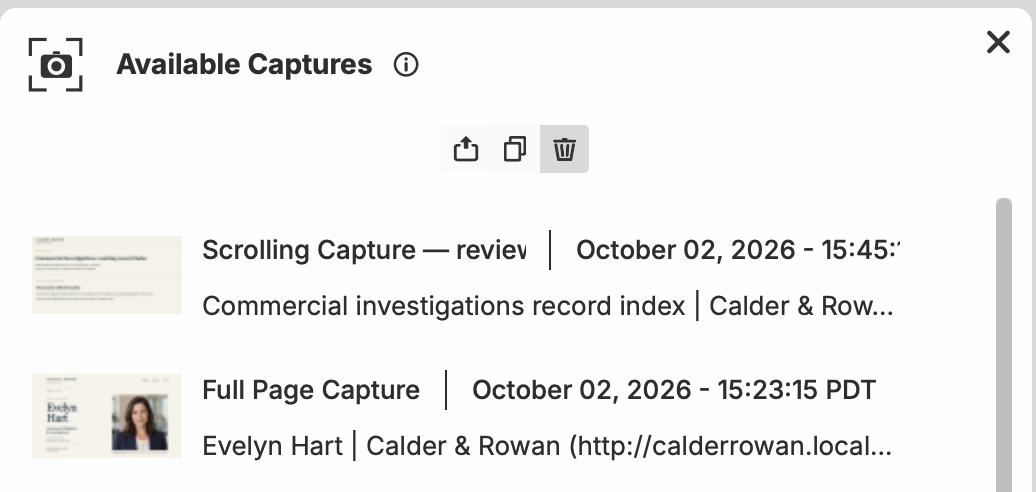
Capture Manager Delete
To remove a capture from the manager, select Delete in the mode selector, then click the capture you want to remove.
Discord Capture
Section titled “Discord Capture”Discord Capture
Discord Capture nodes allow you to take an immutable snapshot of a message from a given Discord message and ingest it into the case.
After installing the Discord Capture plugin, you can perform a discord capture by right clicking a message in Discord and selecting nQuest Capture.
On the capture node, you can see the original message, any attachments on the message, and the message history of the channel before the message was sent.
Hovering over a username’s ID icon will show a tooltip with alternate usernames and the ID. Clicking on the ID icon copies the numeric ID to your clipboard.
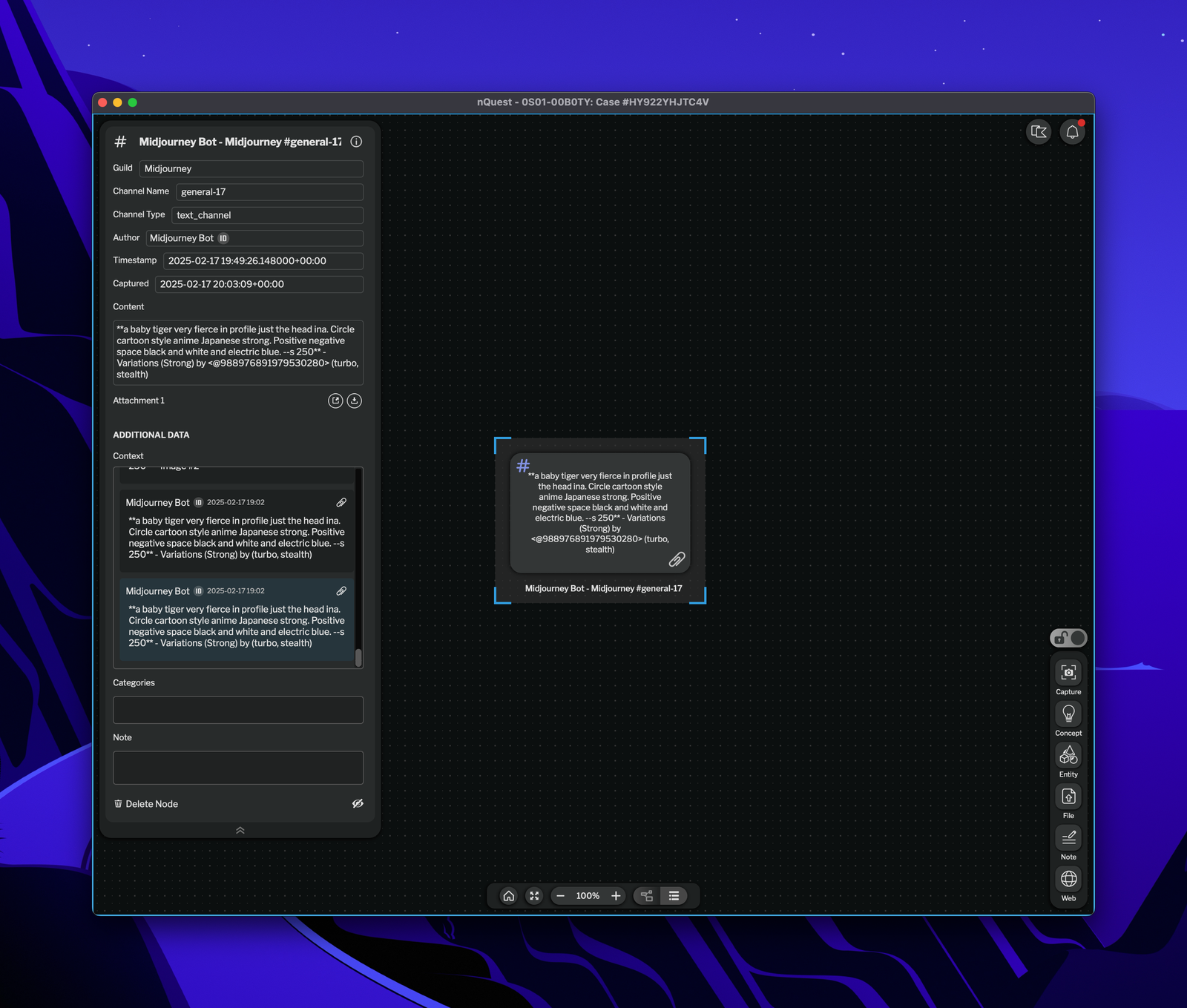
Discord Capture Node in Graph