
Entity Nodes
Entity nodes represent a specific type of object (like a person, account, or identity document).
They are also independently searchable, and associable with a case at the case detail level.
Entity Node Operations
Section titled “Entity Node Operations”Adding an Entity Node to a Case
Section titled “Adding an Entity Node to a Case”To add an entity node to a case, click the Entity button in the add node menu. A pop up will appear with a list of entity base types and custom subtypes.
Adding an Entity Node to a Case
Entity Node Types
Section titled “Entity Node Types”Entity nodes can be based off of either a predefined base type or a custom type. Custom type definitions require a base type selection. Custom types can be created in the Configuration: Entity Definition section by a library administrator and apply to all cases within the entire library.
Entity Node Base Types
Section titled “Entity Node Base Types”| Base Type | Base Fields | Appearance | Example Custom Types | Description |
|---|---|---|---|---|
| Person |  |
Represents a person in the real world. | ||
| Account | 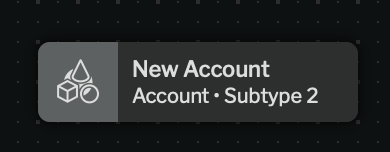 |
Represents an account | ||
| Organization |  |
Represents an organization. | ||
| Event | 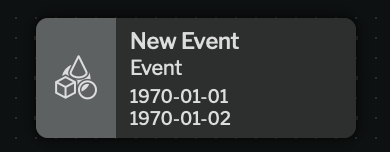 |
Represents something that occurred at a location (real or virtual) at a point or range in time. | ||
| Physical Object | 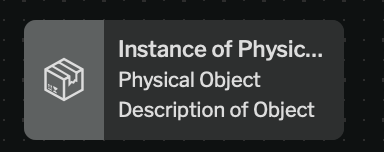 |
Represents a physical object. | ||
| Fungible Object |  |
Represents an object with no unique identifier. | ||
| Virtual Object | <None> | 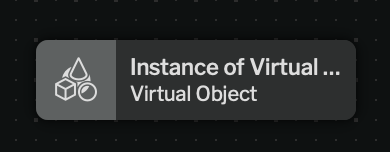 |
A virtual object is any entity that represents a conceptual object and is not covered by other base types. |
*(Only applicable for an instance of the base type, not a custom type)
Entity Node Custom Types
Section titled “Entity Node Custom Types”Custom types can have additional fields, which are defined in the configuration for the custom type. These fields are searchable in Entity Search, and can be used to create more specific entity types and standardize how data is captured for a given entity type.
For more on configuring entity node custom types, see Configuration: Entity Definition.
Ad Hoc Fields
Section titled “Ad Hoc Fields”Ad hoc fields are a type of field that can be added to an entity node. They are not predefined and can be customized on an ad-hoc basis for each individual entity node. This allows for flexibility in data capture, preventing the need to predefine every possible data point that could be relevant to an entity.
For the different types of fields supported by entity nodes, see Configuration: Field Types.
Adding an Ad Hoc Field to an Entity Node
Section titled “Adding an Ad Hoc Field to an Entity Node”To add an ad hoc field to an entity node, click the Add Ad Hoc Field button in the left panel of an entity node.
Editing an Ad Hoc Field
Section titled “Editing an Ad Hoc Field”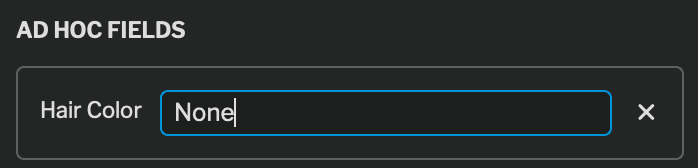
All ad hoc fields on an entity node will be displayed in the left panel of the entity node and can be edited by clicking into the field.
Deleting an Ad Hoc Field
Section titled “Deleting an Ad Hoc Field”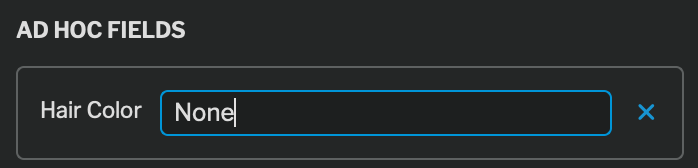
To delete an ad hoc field, click the X icon in to the right of the field.
Entity Roles
Section titled “Entity Roles”A role describes how an entity relates to this investigation, such as Witness, Client, or Subject. It is different from the entity’s type: a Case Contact record can have the Witness role in one case.
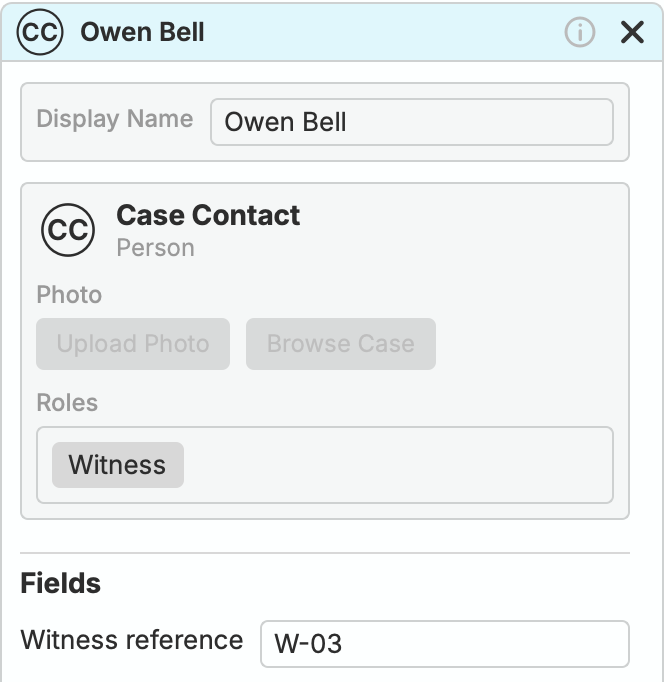
Owen Bell's entity details showing the Case Contact type, Witness role, and Witness reference field
Open the case workspace and select the entity to inspect its Roles in the details panel. To change its roles, enter edit mode and choose from the roles available for that entity type. Administrators configure these under Entity Types.
Assigning a role makes the entity part of the case-level role information, which can be available to summary viewers. Do not assign a role merely as a private label: consider the visibility of the entity’s details.
The library’s Case Information and tag columns are not the entity-role editor. Use the entity’s own details to check its role. Entity roles also do not grant user permissions; owners, contributors, delegates, and viewers are managed separately under Case Access.