
Case Tags
Case tags provide a flexible way to categorize and label cases in your library. They replace and extend the older Case Types & Outcomes system, allowing you to define any number of tag types with configurable values.
To manage case tags, a user must be either a library administrator or a global administrator.
Open Case Tags in the sidebar. Tag Types contains the definitions and their values; Tag Restrictions controls which values are available together.
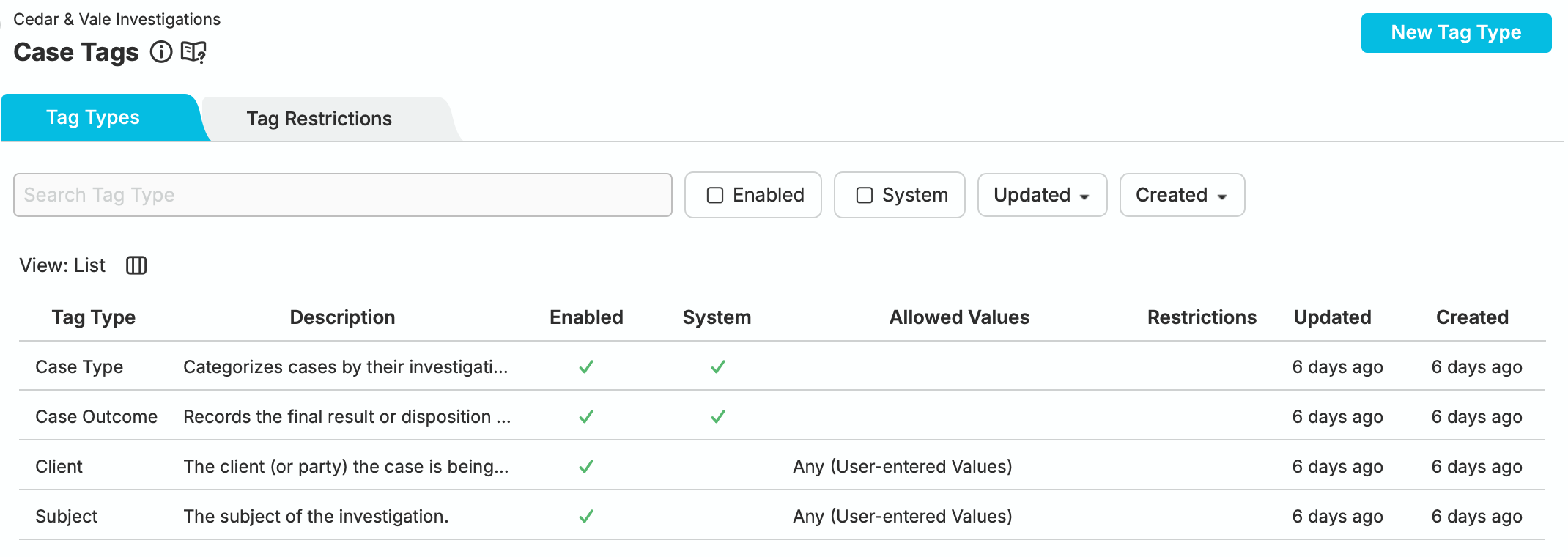
Case Tags configuration showing the Case Type and Case Outcome system tags alongside Client and Subject custom tags
System Tags vs Custom Tags
Section titled “System Tags vs Custom Tags”nQuest includes two system-defined tag types that cannot be deleted:
- Case Type — classifies the nature of the case (e.g., Fraud, Misconduct, Theft)
- Case Outcome — records the resolution of a closed case (e.g., Substantiated, Unsubstantiated)
These system tag types behave like custom tags in most respects — you can add, rename, and reorder their values — but the tag types themselves cannot be renamed, deleted, or have their system properties changed.
In addition to system tags, you can create custom tag types to capture any categorization your organization needs. For example, a Client tag type could track which client a case is associated with, or a Region tag could indicate geographic scope.
Tag Type Properties
Section titled “Tag Type Properties”Each tag type has the following properties:
| Property | Description |
|---|---|
| Name | The display name of the tag type. |
| Description | An optional description of what the tag type represents. |
| Enabled | Whether the tag type is active and available for assignment. Disabled tag types cannot be assigned to new cases. |
| Allow Any / Allow Only | Controls whether users can enter free-text values or must select from a predefined list (see below). |
Tag Values
Section titled “Tag Values”Each tag type contains a list of values that can be assigned to cases. A slide toggle controls the value mode:
Allow Any
Section titled “Allow Any”When set to Allow Any, users can enter any free-text value when assigning the tag to a case. The defined values serve as suggestions but do not restrict input.
Allow Only
Section titled “Allow Only”When set to Allow Only, users must select from the predefined list of values. No free-text entry is permitted. This mode is useful when you need strict categorization.
Managing Tag Types
Section titled “Managing Tag Types”Creating a Tag Type
Section titled “Creating a Tag Type”To create a new tag type, open Case Tags → Tag Types and select New Tag Type. Fill in the name, description, and properties, then add values as needed and select Create.
Editing a Tag Type
Section titled “Editing a Tag Type”Select a tag type from the list to view and edit its details in the right panel. You can change a custom type’s name, description, enabled status, and value mode. Values can be added, renamed, or removed. Save changes using the controls offered by the editor.
Reordering Tag Types
Section titled “Reordering Tag Types”Tag types can be reordered using drag-and-drop in the tag type list. The order determines how tags are displayed throughout the application (e.g., in case details and filters).
Disabling a Tag Type
Section titled “Disabling a Tag Type”Disabling a tag type removes it from being available for assignment to new cases. Existing assignments are preserved.
Assigning Tags to Cases
Section titled “Assigning Tags to Cases”Select a case in Libraries, then open Overview → About. Owners can assign custom tags in place:
- Select Add tag type… and choose the type.
- Choose an allowed value, or enter a free-text value for an Allow Any type and confirm it.
- To change an existing value, use its edit control. To remove one, use the remove control on its tag.
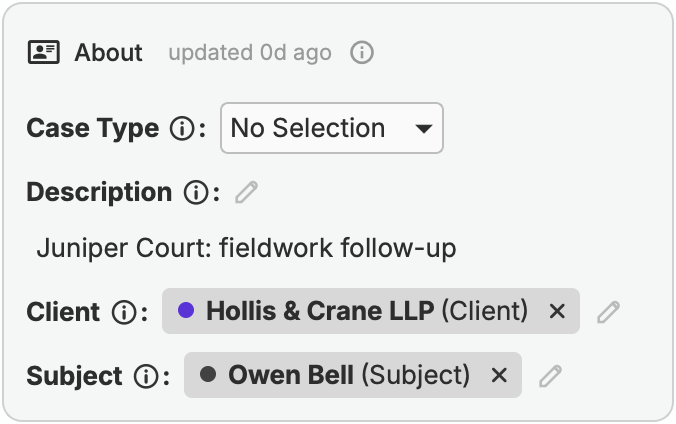
About card showing Client and Subject tags on the Juniper Court follow-up case
Case Type has its own selector in About and in the New Case form. Case Outcome is selected when closing a case. Custom tags can also be supplied during case creation.