
Working with Others
A case has one owner and can have several contributors. Either can be a person or a group. Groups use delegates to identify the members responsible for their work; viewers follow the case without editing it.
Start in the Right Library
Section titled “Start in the Right Library”Select Libraries, choose your personal or group library, then select the case. The selected library is the context you act on behalf of.
For example, Julia can own an investigation while Fieldwork contributes to it and Daniel carries out the group’s follow-up. Julia’s case can remain Open while Fieldwork’s contribution is In Progress.
The Workflow Card
Section titled “The Workflow Card”Open Overview → Workflow to review the current context’s status and priority, the owner, contributors, and delegates. The card offers actions appropriate to your role.
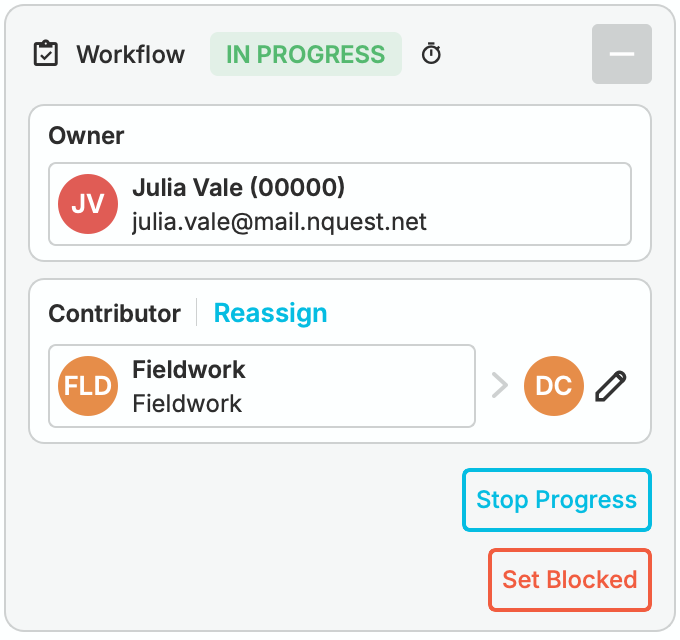
Fieldwork's In Progress contribution, delegated to Daniel Cho, in the Workflow card
Use Tasks to assign specific actions. Delegating a case and assigning a task are different: delegation grants the group’s workflow authority; a task records a piece of work.
Ownership
Section titled “Ownership”The owner controls the case’s library details, ownership, contributors, and lifecycle. A case is initially owned by the person or group selected when it is created.
For a group-owned case, group admins and the case’s delegates exercise ownership on the group’s behalf. A non-admin who creates a case for a group is automatically made a delegate.
Transferring Ownership
Section titled “Transferring Ownership”In the owning context, choose Transfer beside Owner in the Workflow card. Select the new owner, add a handoff note, and submit.
The previous owner receives viewer access rather than retaining ownership. Compartment restrictions still apply.
Contributors
Section titled “Contributors”Contributors can edit the investigation without owning it. A contribution can be assigned to a person or group, and several contributors can work on the same case.
For a contributor group, admins and delegates manage its contribution. Other ordinary members can edit case contents but do not automatically gain the group’s workflow authority. Read-only group roles remain read-only.
Contributor Actions
Section titled “Contributor Actions”A contributor can edit case contents, add notes, manage its own workflow status and priority, and return or reassign its contribution. Contributors do not gain the owner’s authority to edit case metadata or close the whole case.
Each contribution has its own status. A status update for Fieldwork does not silently change the owner’s or another contributor’s status.
Requesting a Contributor
Section titled “Requesting a Contributor”From the owning context, choose + Add beside Contributors in Workflow. If contributors already exist, choose Manage.
Select the people or groups to add in Manage Contributors, include a note explaining the requested work, and submit the changes.
Viewing Contributors
Section titled “Viewing Contributors”Contributors appear in Workflow and in the Access tab. A delegate is shown alongside its group, not as another independent contributor.
Revoking a Contribution Request
Section titled “Revoking a Contribution Request”As the owner, choose Manage beside Contributors. Remove the relevant person or group from the pending list, add an explanation, and submit.
Check the remaining selections before submitting: this dialog manages the case’s contributor list.
Returning a Case
Section titled “Returning a Case”From the contributing context, choose Return in Workflow. Record what was done and what remains unresolved, then submit.
This ends that context’s contribution, grants it viewer access subject to the case’s restrictions, and records the handoff in History. It does not close the case.
Reassigning a Case
Section titled “Reassigning a Case”Choose Reassign beside your contribution to pass it to another person or group. Select the recipient, add a handoff note, and submit.
The recipient becomes a contributor. Your former contributing context becomes a viewer, subject to access restrictions, and the change is recorded in History.
Delegates
Section titled “Delegates”A delegate acts on behalf of an owner or contributor group. The group remains responsible for the case; delegation identifies the members doing its work. A group can delegate the same case to more than one member.
Delegating a Case
Section titled “Delegating a Case”- Select the group’s library and open the case.
- In Workflow, choose + Add Delegate beside the group, or the edit control beside its existing delegates.
- In Manage Delegates, select the eligible group members.
- Submit the updated delegate list.
Adding Daniel Cho as a delegate for Fieldwork's contribution
You need authority to manage that group’s delegation. If the control is absent, check both the selected library and your group role.
Viewing Delegates
Section titled “Viewing Delegates”Workflow shows delegate avatars beside the group. Hover over an avatar for the person’s details, or open Access for the named roster.
Use Group By → Delegates in the library to review work by delegate. Group libraries also provide delegate workload information in their summary view.
Removing a Delegate
Section titled “Removing a Delegate”Open Manage Delegates, remove the member from the current list, and submit. Removing a delegate ends their delegated workflow authority; it does not necessarily remove access they receive through another role or group membership.
Compartments
Section titled “Compartments”Compartments restrict who may see a case. A user needs both case permission and membership of every compartment assigned to that case.
Compartment membership alone does not grant case access. A case owner or account administrator is not exempt from a compartment’s restrictions simply because of that role.
For configuration and read-in lists, see Compartments.
Adding a Compartment
Section titled “Adding a Compartment”Use the compartment controls beside the case ID to add an available compartment and confirm the selection. You need permission to make that case change and must be read into the compartment.
Adding a compartment can remove visibility for people who could previously see the case. Check that the people who need to continue the work are on its read-in list.
Removing a Compartment
Section titled “Removing a Compartment”Use the remove control on an assigned compartment. Only a compartment controller can remove that restriction.
Case Access Tab
Section titled “Case Access Tab”Open Access in the case header, or choose View all access from the Overview’s Access card.
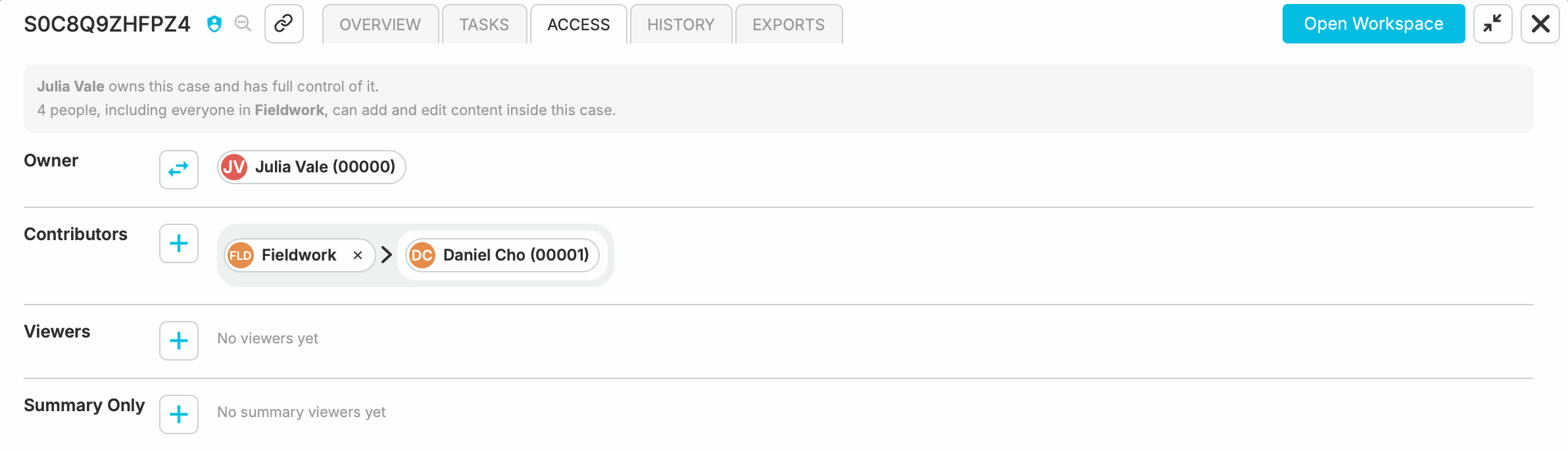
Access roster showing Julia as owner, Fieldwork as contributor, Daniel as delegate, and separate viewer and summary-only sections
The roster separates ownership, contributions, delegates, viewers, and summary-only access. Available add and remove controls depend on your permissions. Mandatory grants are identified separately and cannot be removed as ordinary case grants.
Viewers and Summary Viewers
Section titled “Viewers and Summary Viewers”A Viewer can open the case contents and read the investigation synopsis, but cannot edit the case through that grant.
A Summary Viewer can see library-level details, not the evidence workspace or the AI synopsis of its contents. Avoid putting restricted evidence into a title, tag, or other broadly visible detail.
Former owners and contributors normally retain viewer access after transferring or returning work. Compartments still restrict that access.
Adding a Viewer
Section titled “Adding a Viewer”Use the + control in Viewers or Summary Only, select the person or group, and confirm. Choose the section that matches the access you intend to grant.
Removing a Viewer
Section titled “Removing a Viewer”Use the remove control on the person’s or group’s grant. Check other memberships and mandatory grants as well: removing one grant does not remove every possible source of access.
Mandatory Access
Section titled “Mandatory Access”Mandatory viewer or summary-viewer grants are managed through account policy, not removed by an individual case owner. They are shown in the access roster.
For the account controls, see Account Administration. For FERPA-specific grants, see Automatic Mandatory Access.
Group Viewers
Section titled “Group Viewers”A group can include view-only or summary-view-only members. Those members receive the corresponding read-only access to the group’s cases; group membership does not turn them into contributors or delegates.
See Groups for the group-role configuration.