
Case Details
Case details let you review and manage an investigation without opening its evidence workspace. Select a case in Libraries to show its details below the table.
Opening Case Details
Section titled “Opening Case Details”Use the tabs in the case header to move between Overview, Tasks, Access, History, and Exports. Tabs and actions depend on your access and the case’s state.
Choose the expand control beside Open Workspace when you need more room. This enlarges the same details view. Open Workspace opens the case’s graph and records instead; the × control deselects the case.
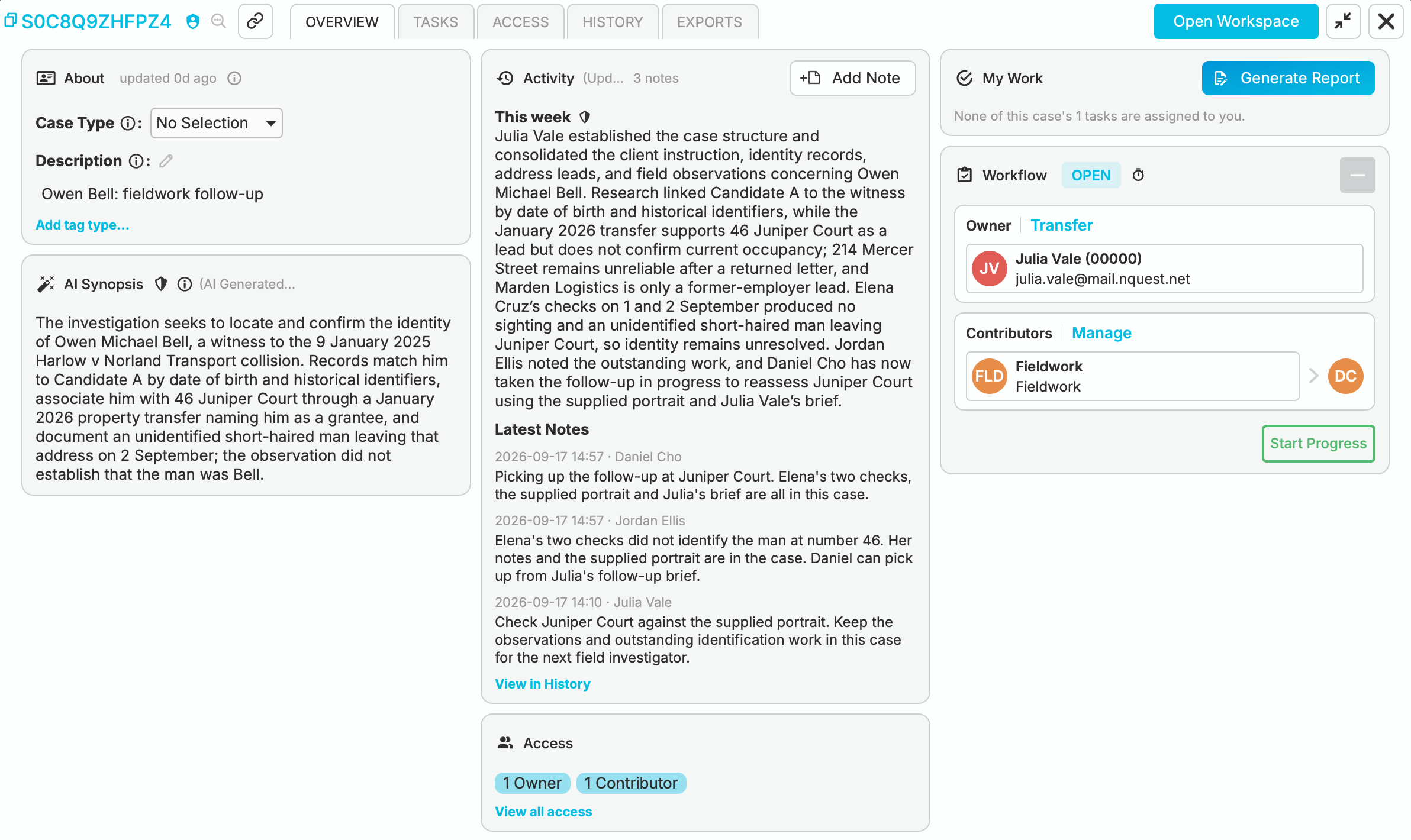
Expanded case Overview with About, AI Synopsis, Activity, Access, My Work, and Workflow cards
Overview
Section titled “Overview”The Overview arranges information into cards. Their position changes with the space available, and cards that do not apply to the case may be absent.
| Card | What it is for |
|---|---|
| About | Read or edit the description, case type, and custom tags. |
| AI Synopsis | Review the AI-generated overview of the investigation. |
| Activity | Catch up on recent work and notes, or add a note. |
| Workflow | Manage status, priority, ownership, contributors, and delegates. |
| My Work | See your own tasks and available report actions. |
| Access | Review the access summary and open the full access list. |
Case ID & Case Description
Section titled “Case ID & Case Description”The Case ID in the header identifies the case. The Description in About is its short, human-readable title. An owner can use the edit control beside Description to update it.
Keep the description useful without putting sensitive evidence in it: library details can be visible to people who cannot open the case contents.
Case Types
Section titled “Case Types”Choose the Case Type in About to classify the investigation. Use Add tag type… for other labels, then choose or enter a value. Existing tags can be changed or removed in the same card when you have permission.
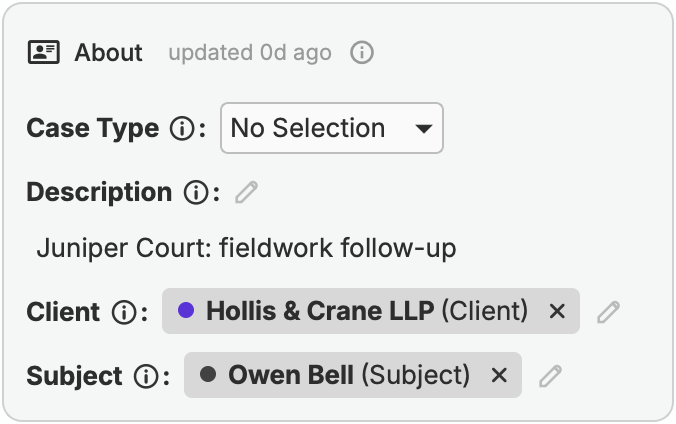
Case About card with Client and Subject tags for the Juniper Court follow-up
Case Type and Case Outcome are system tag types. Administrators configure them alongside custom tags in Case Tags.
Outcomes
Section titled “Outcomes”An outcome records how the investigation was resolved. An owner can select an available outcome when closing the case. It appears with the closed case’s workflow information; it is not the same as a task’s status.
Case Synopsis
Section titled “Case Synopsis”When AI features and analysis are available, AI Synopsis summarizes the case’s contents. It is available to people with access to those contents, not summary-only viewers.
The synopsis is read-only in Overview. Expand it to read more when the card shows only an excerpt.
Tasks and My Work
Section titled “Tasks and My Work”My Work highlights tasks assigned to you. Open Tasks to see the case’s task list, search it, or filter by status and assignee.

Tasks tab showing a Todo follow-up task assigned to Daniel Cho, with status and assignee filters
Use Add a task to record a specific next action and assign it to the person responsible. A task’s status tracks that action independently of the case’s workflow status. For example, a team’s contribution can be In Progress while a particular follow-up task remains Todo.
Access and History
Section titled “Access and History”The Access card summarizes who can work on or view the case. Choose View all access, or open the Access tab, to inspect owners, contributors, delegates, viewers, and summary viewers. See Working with Others.
Activity gives a recent overview; History provides the event-by-event record. Use Activity → Add Note to leave an update. History includes search, event and actor filters, and a Notes only option. See Case History.
Reports and Exports
Section titled “Reports and Exports”Use Generate Report in My Work when it is available. Report generation and case exports are separate operations.
Open Exports to request or download an export. The new-export controls let you choose whether to include a draft report and attachments. Follow the export’s status before downloading it; generating a report or export does not send it to anyone.
For protected disclosure records, see FERPA Notes. Their access rules differ from ordinary case evidence.