
Installing Capture Tools
Browser Extension
Section titled “Browser Extension”nQuest’s browser extension captures full web pages, supported scrolling panels, selected text, and frames. Captures retain their source URL and collection time and arrive in the desktop capture manager, ready to add to a case. Chrome, Firefox, and Edge are supported on Windows and macOS. Chromium and Firefox are also supported on Linux.
Google Chrome / Chromium
Section titled “Google Chrome / Chromium”To download the extension, go to the Chrome Web Store while using Chrome or Chromium and click “Add to Chrome”.
For more assistance, see the install and manage extensions on the Google Chrome Help Center.
Mozilla Firefox
Section titled “Mozilla Firefox”To download the extension, go to the Firefox Add-ons page while using Firefox and click “Add to Firefox”.
For more assistance, see the Find and install add-ons on the Mozilla Firefox Knowledge Base.
Microsoft Edge
Section titled “Microsoft Edge”To download the extension, go to the Microsoft Edge Add-ons page while using Microsoft Edge and click “Get”.
For more assistance, see the Add, turn off, or remove extensions at Microsoft Edge Support.
Connect and Make Your First Capture
Section titled “Connect and Make Your First Capture”- Install or update nQuest Desktop and the browser extension. Open the desktop app on the same computer.
- Reload any source tabs that were already open when the extension was installed or updated.
- Open the extension on the source page and check that it shows Connected.
- Select Full Page Capture and keep the tab active until the extension confirms Saved to nQuest.
- In an editable nQuest case, choose Capture Node from the add-node controls. Move or copy the capture into the case, then double-click its node to inspect the original and check coverage.
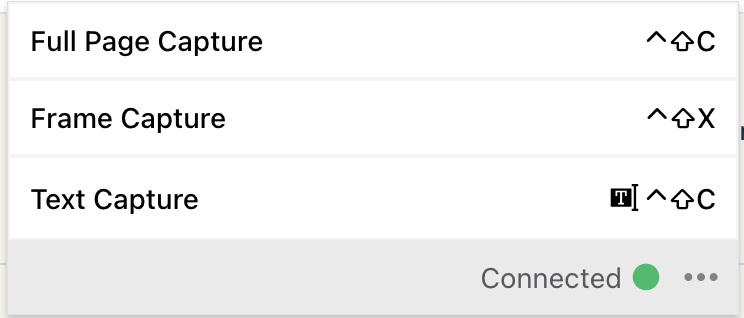
Connected browser extension with Full Page Capture, Text Capture, Frame Capture, and assigned shortcuts
See Capture Nodes for text and frame captures, scrolling panels, partial captures, and recovery.
If Capture Is Unavailable
Section titled “If Capture Is Unavailable”If the extension is disconnected, confirm that nQuest Desktop is running on the same computer, then reopen the extension popup. Reload the page after an update. Browser settings pages and other restricted pages may not allow extension capture; try an ordinary web page to check the connection.
Some pages keep growing, change during collection, or contain unsupported scrolling areas. The extension may offer a partial capture or report that only the visible page was saved. Review capture coverage and warnings before relying on the material.
The extension popup shows the shortcuts assigned by your browser. The defaults are Alt+Shift+C for full-page/text capture and Alt+Shift+X for frame capture on Windows and Linux; macOS uses Ctrl+Shift+C and Ctrl+Shift+X. With text selected, the shared shortcut captures the selection rather than the full page.
Discord (Shelter) Plugin
Section titled “Discord (Shelter) Plugin”nQuest has a plugin for Shelter, an unauthorized third-party Discord client. This plugin allows you to capture messages from Discord channels.
Windows
Section titled “Windows”- First, install the Discord App. If the Discord App is already installed, you can skip this step. Shelter is an in-place modification of the official Discord client.
- Next, download the Shelter Installer. (use the .exe file for Windows)
Shelter Install
-
Open the downloaded file, select Stable, and click Install. You should see a popup that confirms shelter has been installed correctly.
-
Restart Discord to complete Shelter installation. From this point forwards, the install is the same as on MacOS.
Shelter Install Plugin
Next, open the Discord Client and go to the Shelter: Settings menu on the left.
Click on Add Plugin and copy paste the following URL into the URL field:
https://nquest-capture-utils.b-cdn.net/discord-shelter-extClick Fetch, and the capture tools should now be installed in Discord. Turn them on and you’re all set!
- First, install the Discord App. If the Discord App is already installed, you can skip this step. Shelter is an in-place modification of the official Discord client.
- Next, download the Shelter Installer. (use the .dmg file for MacOS)
- Open the downloaded file and double click on ‘Install Shelter’. You’ll get an error message (this is important for the next step). Click cancel.
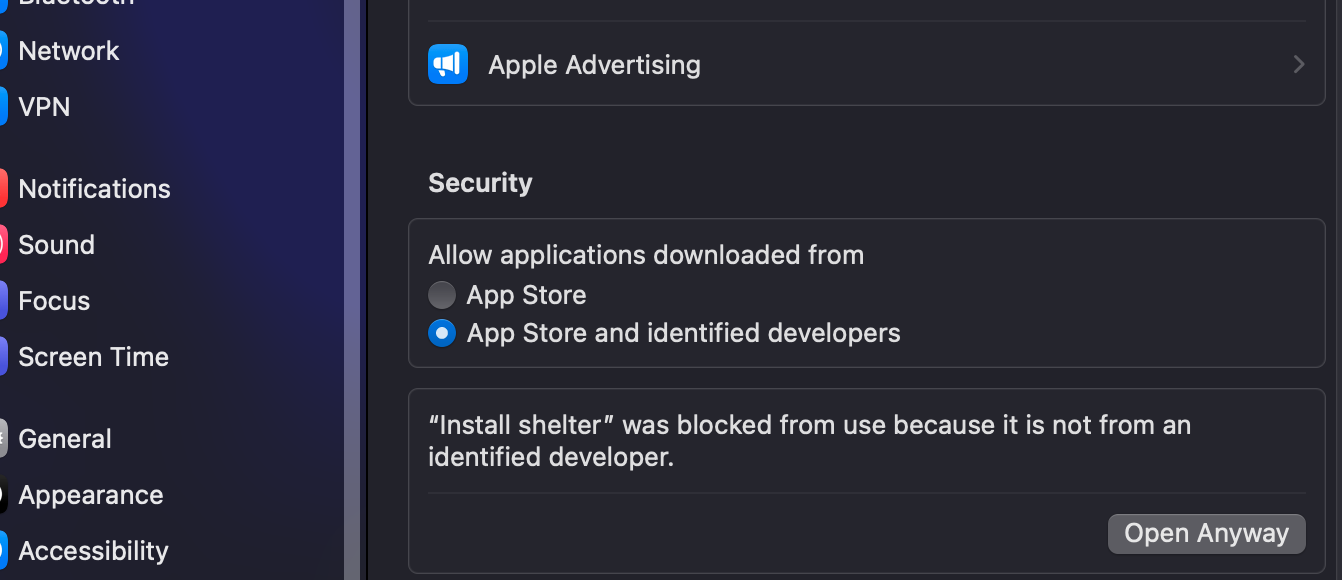
Shelter Privacy Settings
- Open Mac Privacy & Security settings and click on Open Anyway next to the message about Shelter. This will require your password.
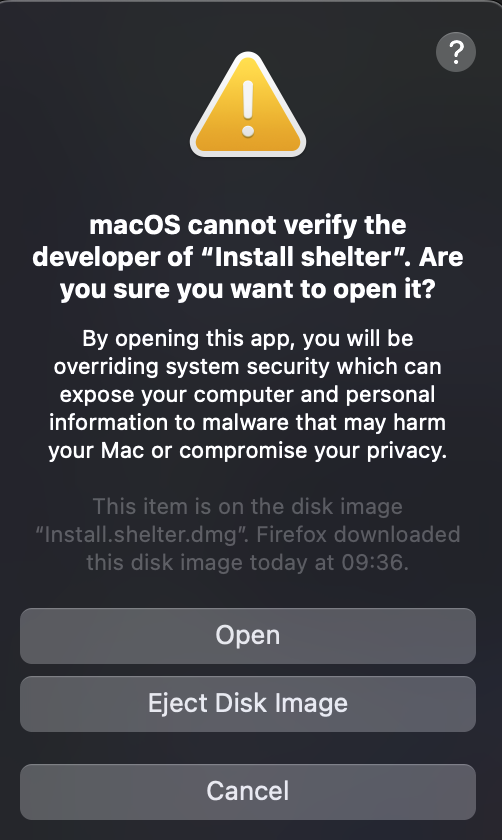
- There will now be another warning message that displays. Click on Open to continue.
Shelter Install
-
Select Stable and click Install. You should see a popup that confirms shelter has been installed correctly.
-
Restart Discord to complete Shelter installation. From this point forwards, the install is the same as on Windows.
Shelter Install Plugin
Next, open the Discord Client and go to the Shelter: Settings menu on the left.
Click on Add Plugin and copy paste the following URL into the URL field:
https://nquest-capture-utils.b-cdn.net/discord-shelter-extClick Fetch, and the capture tools should now be installed in Discord. Turn them on and you’re all set!